A Bank Reconciliation is required to match up all transactions that appear on the Bank Statement or the Internet Banking transaction list. The term Bank Statement will be used but refers to any print out from the bank.
We recommend this is done at least weekly. Users now have the ability to download daily printouts from the bank. This is much more convenient and easier to reconcile.
Opening the Bank Reconciliation
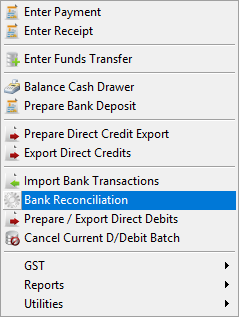
This is started from the Cashbook Module by selecting the Bank Reconciliation option.
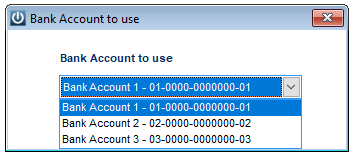
You will be prompted to select the Bank Account to use, if you have more than one account, use the drop down menu.
See How Can I Set the Order in Which the Bank Accounts Appear
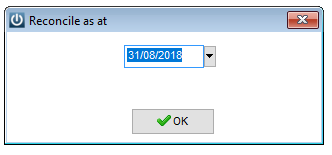
Following on the next screen is the date of the Bank Reconciliation, select the date of the Bank Statement you are using.
Now the Bank Rec screen is showing.
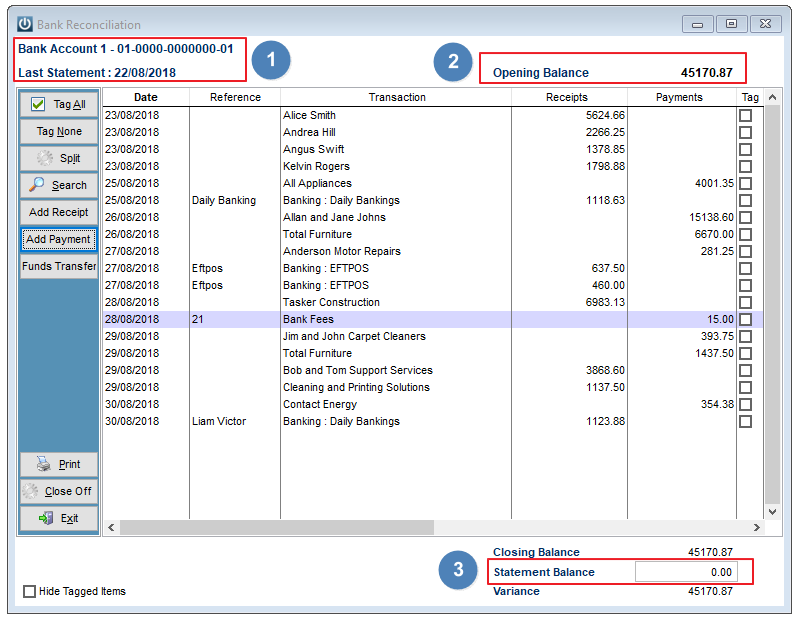
- Shows the Bank Account selected for the Rec and the date of the last Reconciliation.
- Is the Opening Balance from the Closing Balance of the last Statement.
- Enter the Closing Balance from the Bank Statement.
How do Transactions Appear in this Screen?
Every financial transaction that appears in your Bank Account must make it into this screen.
They can be entered as
- A Customer Payment
- Supplier Payment
- Using the Add Payment or Add Receipt buttons Entering Bank Transactions
- Point of Sale Daily banking
- Importing from the Bank
Reconciling to the Statement Balance
Depending on your preference, the screen can be sorted by Date, Receipts or Payments.
The option is also available to Hide Tagged Items, this means they will not show on the screen after they have been tagged.
After entering the Statement Balance and in conjunction with the Bank Statement tag off each transaction as it appears on the Statement.
All transactions should match and the Closing Balance and Statement Balance should be the same.
It is not possible for users to reverse a Bank Reconciliation, so it is necessary for the Rec to balance correctly when being processed.
Troubleshooting
Do not create sundry transactions just to balance your account. This will create problems with transaction that are not balanced.
If there are missing transactions:
Has it been recorded on a different date? Open the Bank Rec again but, use the date 31/12/9999. Reverse or delete the offending transaction.
Check Cashbook / Reports / All Undeposited Banking report
Troubleshooting Transactions Not Showing in the Bank Reconciliation Screen - Customer Payments
It is possible to Split Payments, eg an Eftpos Banking was not done correctly and includes some cash. Using the Split button will allow the total to be split so it can be reconciled.
Comments
0 comments
Please sign in to leave a comment.