To Print Customer Address Labels in bulk there is a 3 step process:
Set Customer Label Defaults
Schedule the Labels
Print the Labels
Admin / Defaults / Manage Customer Defaults
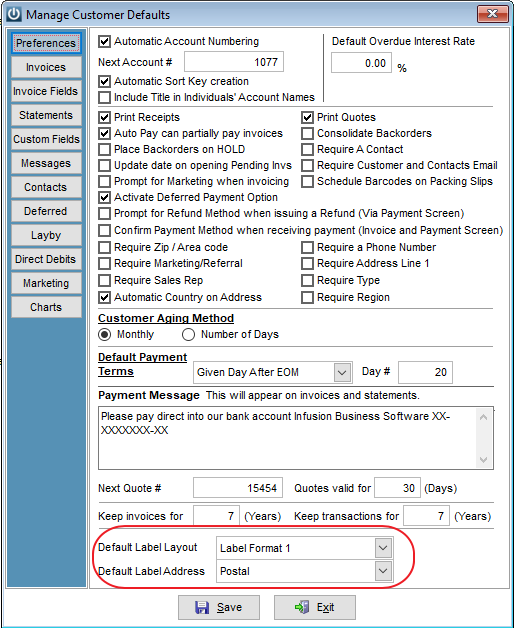
Set the default label layout and label address to use.
Customers / Schedule Customer Address Labels
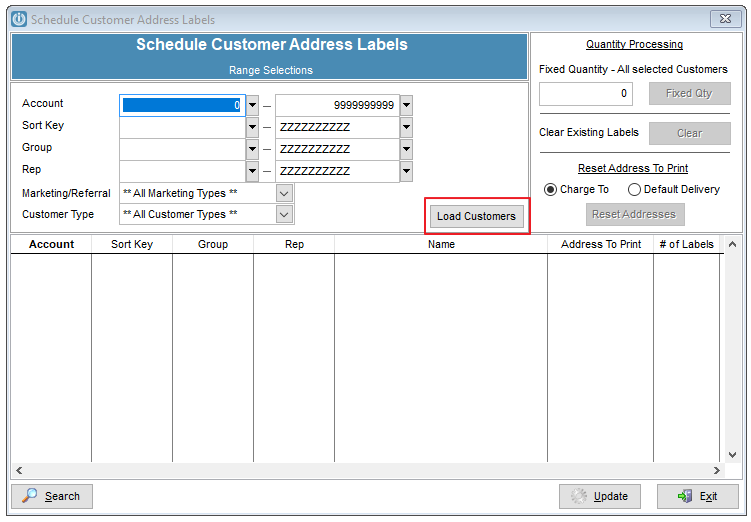
Select the Customers using the available filters and click Load Customers.
Click Ok.
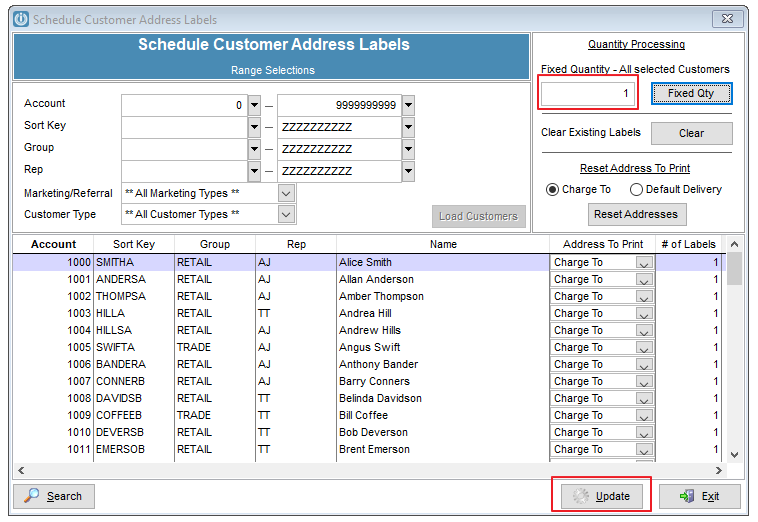
Set the Quantity as desired and click Fixed Qty
Reset Addresses if required.
Click Update and confirm
Filters can be applied during the schedule or during the Print option.
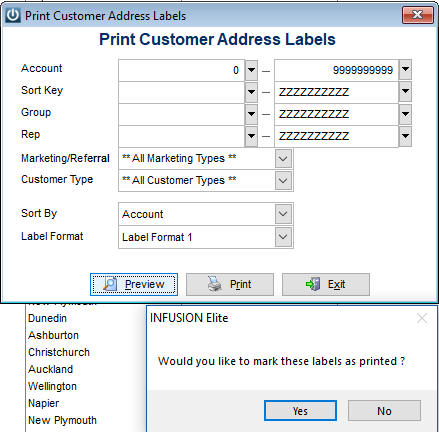
Customers / Print Customer Address Labels.
If a filtered print option has been scheduled, it is not necessary to again filter the parameters. Just print or preview.
If you wish to leave the same labels scheduled for the next print run (eg. You are printing labels for all newsletter customers and you will print those same labels next week) select NO to leave the schedule in place. (NB: any new or edited customers will not be added to the schedule automatically).
If you will recreate your schedule each time you print labels (recommended) then select YES to empty the schedule.
Comments
0 comments
Please sign in to leave a comment.