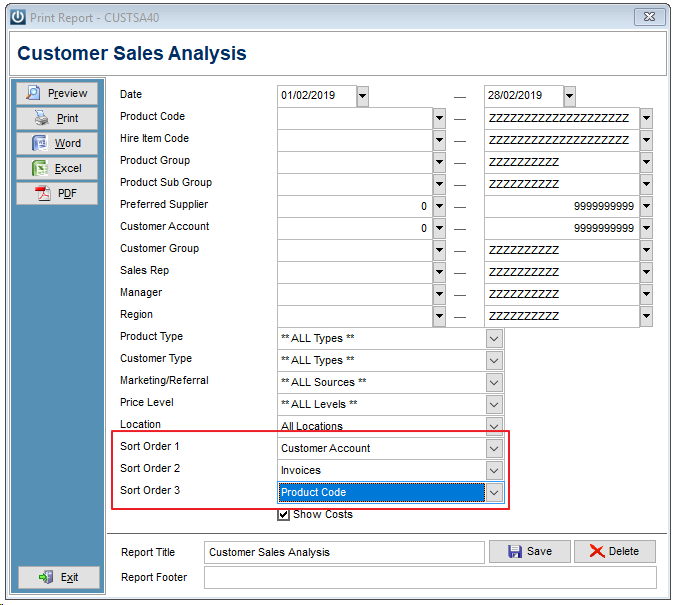
The Customer Sales Analysis – Date Range report that can be found under the Customers menu:
This report contains a column for the margin.
You enter your date range and you may or may not use the filters, but what will make a difference in the level of detail is changing the selections in the Sort Order 1, 2 and 3 fields below.
If you wanted to see the Invoices grouped by Customer account, you select
Sort Order 1: Customer Account
Sort Order 2: Invoices
Sort Order 3: Product Code
Questions from reviewing the Sales Analysis report:
Why is the line blank?
This will occur if the item was sold and returned within the same date range and the sell and cost prices did not change.
Why is the Percentage negative?
If an item was returned by a Customer or credited then this is correct. Check and make sure the Quantity is a negative value
If the Quantity sold is positive and the percentage shows as a negative then this indicates that the item was sold for a value less than it cost you. Things to check:
- Has the item gone up in price?
- Did someone sell a box or carton code rather than a single unit?
Why is the Margin 100%?
This will generally indicate that there is no Cost price stored against the Item.
Invoice Line Margin Exception Report
Also see Invoice Line Margin Exception Report this has been designed to look at Products sold outside a specific percentage.
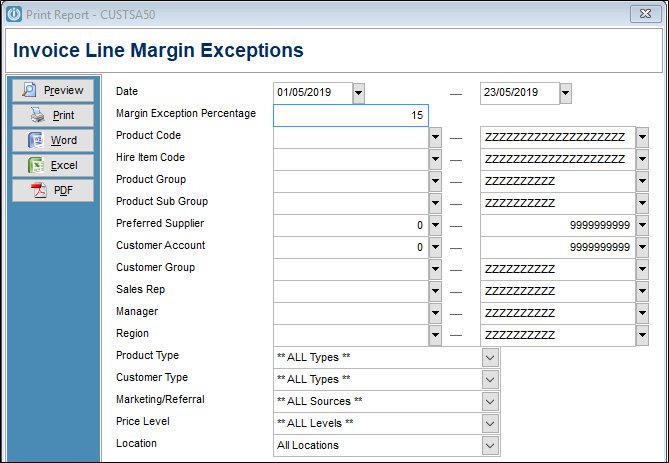
Incorrect cost prices can be edited even on Posted Invoices and this corrected price will show on the above reports.
Comments
0 comments
Please sign in to leave a comment.