To add a Credit Card Surcharge to Invoices from within Infusion, there is some set up required.
Please see Credit Card Surcharge - Eftpos Terminal if this is being done directly from the Eftpos Terminal.
Create the Product Code
See here for setting up the Product Codes Credit Card Surcharge GST Inclusive Prices or Credit Card Surcharge GST Exclusive Prices
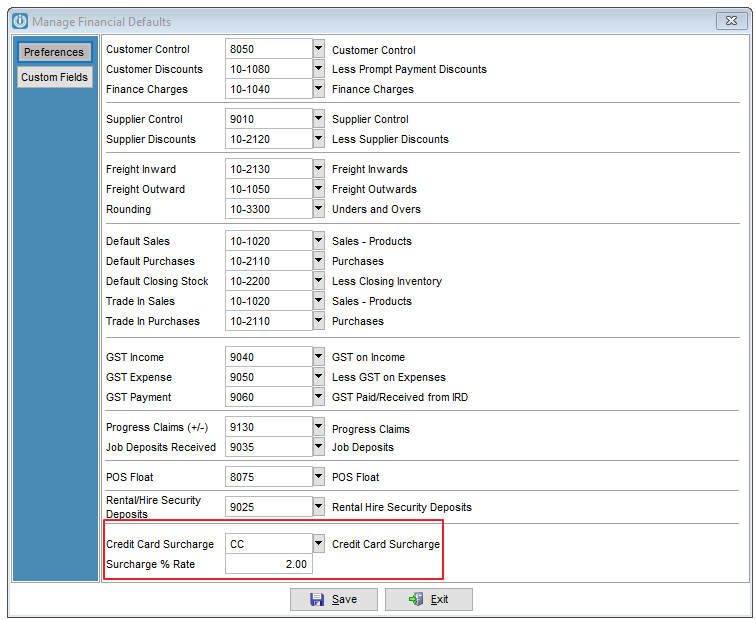
Once this is done, go to Admin / Defaults/ Manage Financial Defaults
At the bottom of the screen enter the Product Code and the percentage rate.
Entering the Invoice
Create the invoice as usual, when the user produces the Credit Card remember to check it is going to be a Credit Card transaction and notify them that a Surcharge will apply.
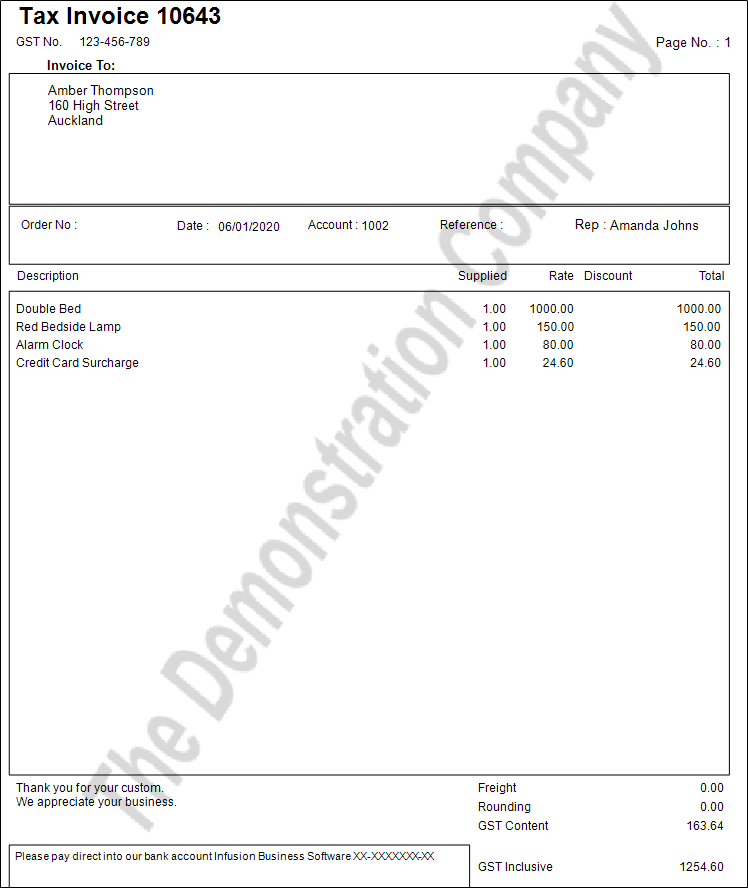
Enter the Product Code (CC) and the system will automatically calculate the percentage rate, or if you are using the GST Exclusive rate, check those instructions.
The new invoice total will appear at the bottom of the screen ready to be entered into the Eftpos Machine.
Process the invoice as usual.
The Surcharge cannot be added to a Customer Account, it can only be calculated at the time the invoice is raised.
Note: the Credit Card Surcharge cannot be added to a Job or to a Hire Invoice.
Comments
0 comments
Please sign in to leave a comment.