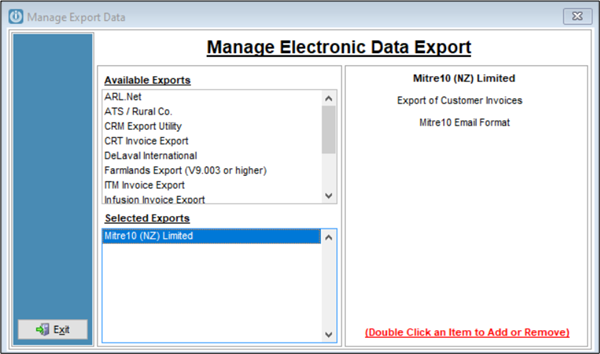
The Mitre 10 Export is added to the Exports tab by selecting this under Admin / Settings / Import/Export / Export
Using Mitre 10 Export
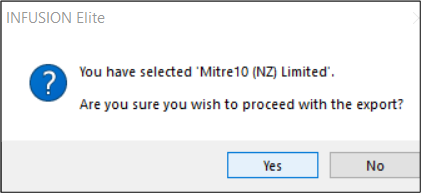
Go to Import/Export / Export and select the Mitre10 Export.
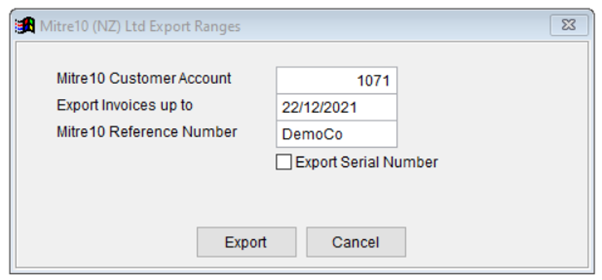
At the prompt enter in the Mitre 10 Customer number, date and Reference.
The Export is emailed off to Mitre 10.
Troubleshooting
My Mitre 10 export is not uploading to Mitre 10. Change the date selected to the end of the previous month and try again.
Check the email defaults to ensure these are set up correctly.
The file is stored in the Infusion folder with the reference and date as the title, this can be emailed, if necessary, when it fails to send automatically.
Support: To tell which invoices have been sent, on INVIDX look at the FSEDI column, it this is a 1, the invoice has been exported.
Comments
0 comments
Please sign in to leave a comment.