The Farmlands Export allows the creation of an export file containing a batch of Customer Invoices that is automatically emailed to Farmlands.
For the email to be sent users must have Email Defaults set and there must also be an email address entered.
Enabling the Farmlands Export
From Admin / Settings / Import/Export / Manage Exports, locate the Farmlands Export option in the Available Exports list, double click it to move it to the Selected Exports list.
Click Exit.

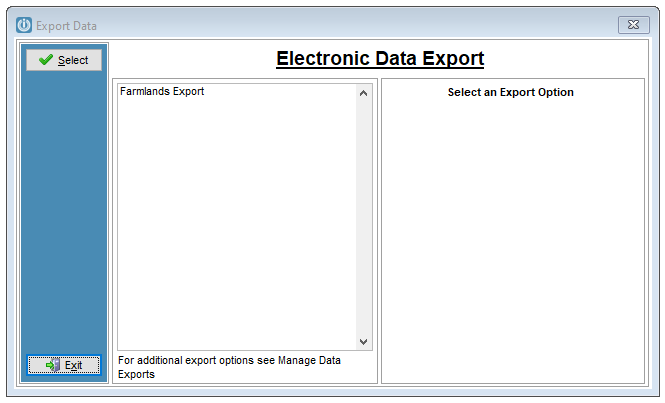
Once enabled, the Farmlands Export is available under the Import/Export menu, Export Data.
Setting up the Customer Account
Customers paying with Farmlands Card need to have a Customer Account, with the Farmlands details stored on it.
The account needs to have the Customer account for Farmlands set as Head Office in the Terms/Pricing Tab.

The Farmlands membership account number has to be stored in the Customer Account. The following fields can be used to store this information:
Details Tab
- The Customer Sort Key field can be used to store the Farmlands membership account number if the software is not set to automatic Sort Key creation (Admin / Defaults / Manage Customer Defaults / Preferences Tab)
Custom Fields Tab
- The CHAR6 Custom Field must be selected to be used to store the Farmlands membership account number. To ensure that all users will always store the number in the correct custom field, rename it as Farmlands # (Admin / Defaults / Manage Customer Defaults / Custom Fields Tab):
- If you are already using Char6, then contact support for assistance.

Exporting Invoices to Farmlands
From the top menu, select Import/Export and then Export Data.
Select the Farmlands Export option and confirm.

Export Farmlands Invoices Screen
When using the export for the first time, some details need to be entered. These details will be stored by the software so they do not need to be entered every time the export function is used:
- Type the number of the Farmlands Customer Account on the Farmlands Head Office A/c
- Select the field where the Farmlands membership account number is stored, using one of the options of the dropdown list of the Farmlands Account Field.
- The Export Filemask field is to contain an identification of the sender of the file for Farmlands. The name of your account with Farmlands should be acceptable, but you may need to confirm this with Farmlands.

The Invoice Dates fields allow selecting the date range of the batch that will be prepared for export. The software tags the records once exported, so they are not automatically included on a new batch unless the tick box Include Previously Exported is selected.
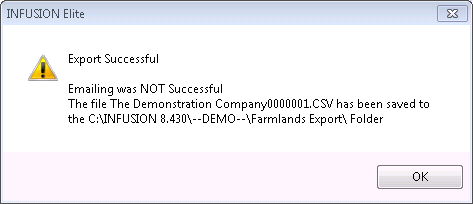
Clicking the Export button will process the export and email it to Farmlands. A success message will be displayed.
If for any reason the software is unable to send the email automatically, the exported file will be stored inside the Farmlands Export folder, under your Data set, inside the Infusion directory.
A message will display the name and location of the file so it can be manually emailed to edifiles@farmlands.co.nz as an attachment using Outlook or your preferred email client.
Important Notice: If there are already invoices in the Farmlands Customer Account which were previously reported to Farmlands via a manual system, it is recommended that these are tagged as sent before the first export.
Processing a FARMLANDS Customer Invoice
Possible scenarios:
The Customer does not have an account and presents their Farmlands card at the point when payment is required.
- The user must hold or save the invoice that was being prepared.
- A new Customer Account must be created and the Farmlands membership details recorded.
- The new account must NOT have terms set as Cash Sale Only (set as Number of Days =1 is sufficient).
- The user then swaps the pending invoice to the new Customer Account, open/recall the pending invoice, ensure that the Head Office tick box is selected and process the invoice. If this is a POS invoice, the payment method to be used is Charge to Account.
The Customer account exists, but their Farmlands membership details have not been stored. This is realised only when the payment is required.
- The user must hold or save the invoice that was being prepared.
- The Customer Account must be updated and the Farmlands membership details recorded.
- The account must NOT have terms set as Cash Sale Only (set as Number of Days =1 is sufficient).
- The user will then open the pending invoice, tick the box to indicate the invoice is to be charged to the Head Office account and then process the invoice. If this is a POS invoice, the payment method to be used is Charge to Account.
The Customer account exists with Farmlands membership details stored, but the Customer does not wish to charge this invoice to Farmlands.
- The user must untick charge to Head Office Account box indicating so the invoice is NOT charged to the Head Office, and then process the invoice.
- Because the Customer account is NOT set with Cash Sale Only terms, the user must include the payment to the invoice if the balance is not to be left outstanding.
The Customer wishes to charge part of the purchase to their Farmlands card and pay the remainder in alternate way.
- This will require the creation of two separate invoices: one to be charged to the Head Office and one to be paid by the Customer.
The Customer is returning an item that was originally processed with Farmlands.
- The credit must be also processed against Farmlands. Ensure the tick box to Charge to Head Office is ticked.
- The user must create an invoice with a negative quantity and process the invoice. If this is a POS credit note, the payment method to be used is Charge to Account.
The Customer returns to the store and wishes to pay the invoice by another payment method.
- The original invoice has to be credited. The credit note has to be charged to the Head Office account.
- A new invoiced has to be created, with the Charge to Head Office tick box unticked.
CHARGING FOR FREIGHT

Important Notice: The freight field at the bottom of the invoice screen must not be used when creating a Farmlands Customer Invoice. Instead, a product code for freight must be entered into a line of the invoice; otherwise the freight amount will not be included in the payment from Farmlands.
See Farmlands Payment and Commission
Comments
0 comments
Please sign in to leave a comment.