Following are the procedures by which Backorders are setup and processed in Infusion:
Setup
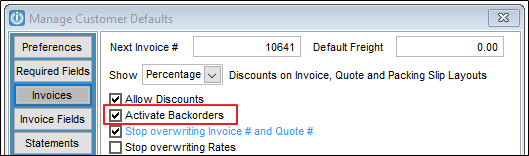
1) Enable the use of Backorders system wide by selecting Activate Backorders from the Admin / Defaults / Manage Customer Defaults / Invoices menu option.
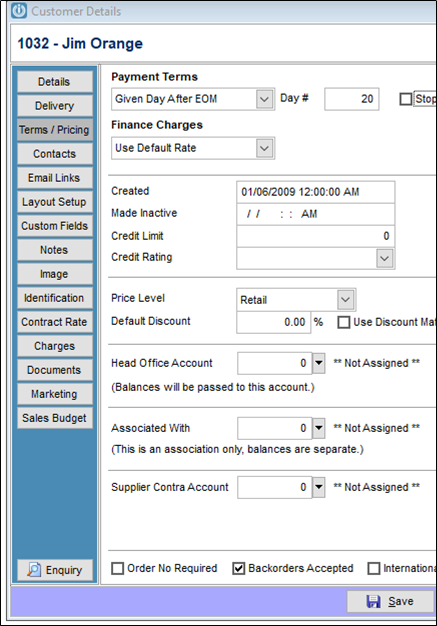
2) For each Customer who wishes to accept backorders, tick the option Backorders Accepted on the Customers / Terms/Pricing tab under Manage Customers.
3) The system should also be set to Warn when insufficient stock available (this can be based on the All Locations or just on the location the invoices stock is coming from) which is an option under Admin / Defaults / Manage Product Defaults / Preferences.
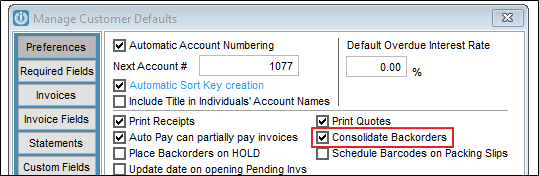
4) The Place Backorders on Hold option will automatically place Backorders on hold when they are created. For a Backorder to be filled / processed it must be taken off being on Hold. The Consolidate Backorders option will consolidate multiple Backorders for a Customer in the Pending Customer Backorders Invoices screen on to one Invoice when the Process option is selected (see below)
Creating a Backorder
When creating an Invoice for a Customer and an item is added that has insufficient quantity in stock to fill the order, a Backorder will be created. If part of the order can be filled a standard invoice will be created using these items and the balance will be put on Backorder. If the option Warn when insufficient stock available from 4 above is selected and there is not enough of the item on hand to fill the order a pop up will appear. From here an entry can be made in to the Backorder column on the invoice screen. If the option Prompt to Order when insufficient stock on saving/posting (Invoice screen) from above is selected a pop up will appear allowing you to create a Purchase Order for the quantity of items the Invoice is short by.
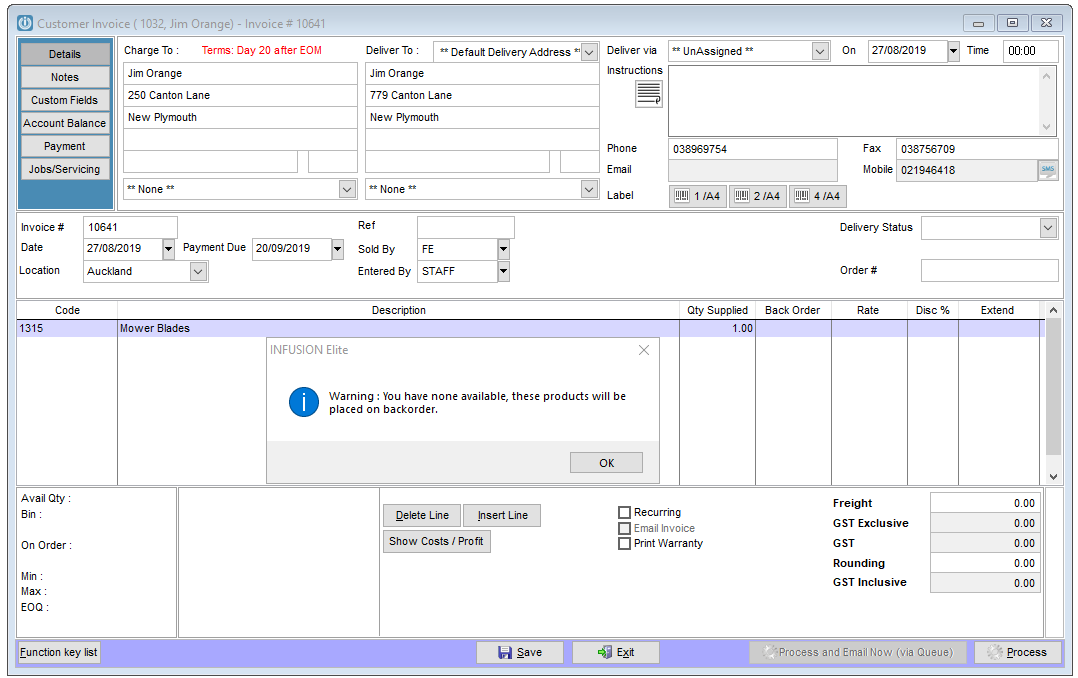
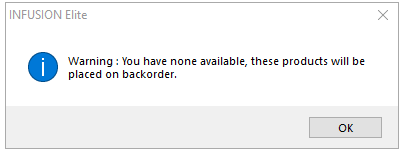
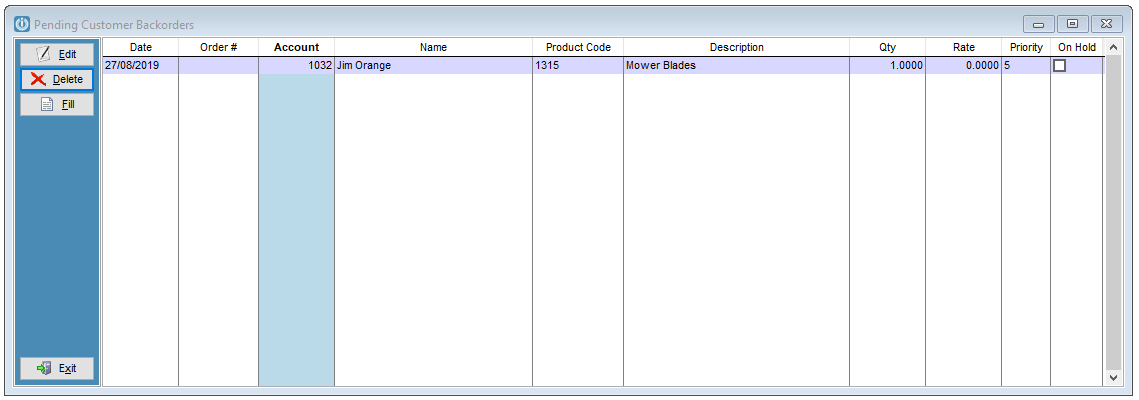
When the invoice is Processed it will create a Pending Backorder. This can be amended or deleted later. If the option in 2 has been selected a purchase order will be created and before finalizing). It also shows in the Product Status report as “backordered: ( ie the report used by staff for calculating the quantities needed for ordering product.)
Processing of Backorders
For a Pending Backorder to be filled goods need to be receipted in (through a Purchase Order or Receive Products).
To complete a backorder:
- Open the Pending Backorders screen from the Invoices drop down menu. This displays all Pending Backorders by product code. Each line can be edited or deleted.
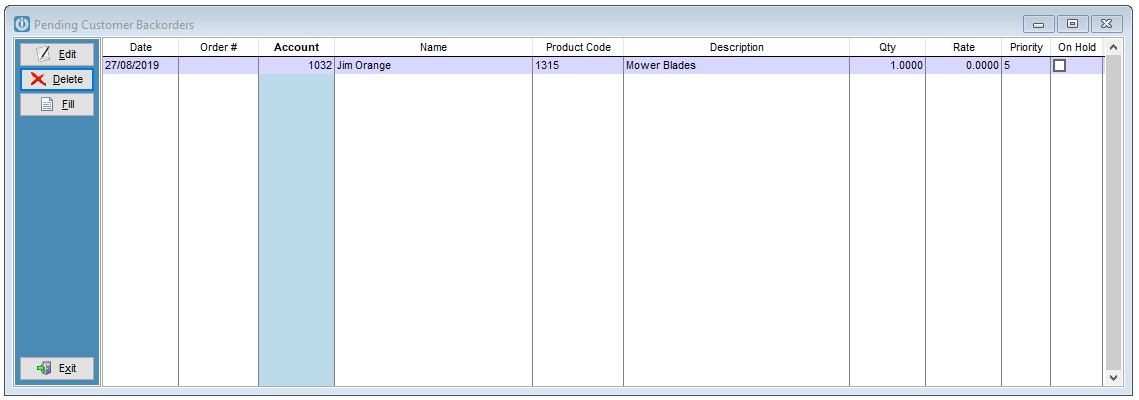
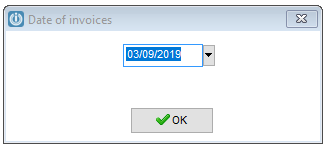
- Select Fill to produce the screen below.
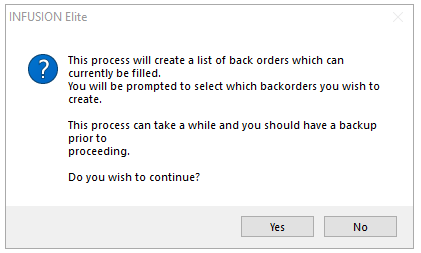
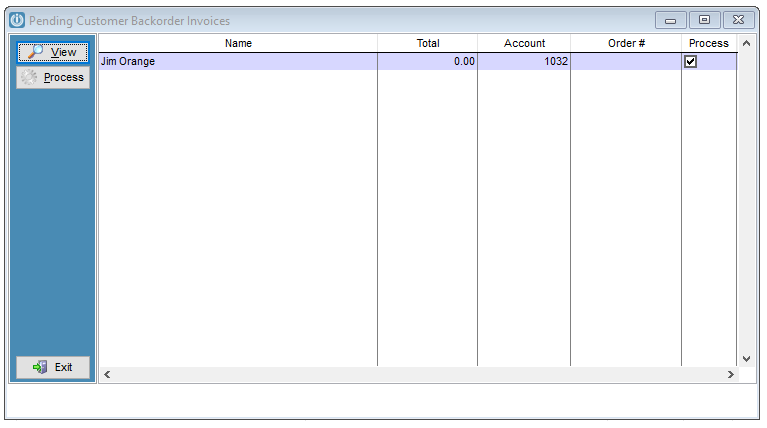
- Select if goods have been receipted in that can fill any of the Pending Backorders then the next screen will display a list of these.
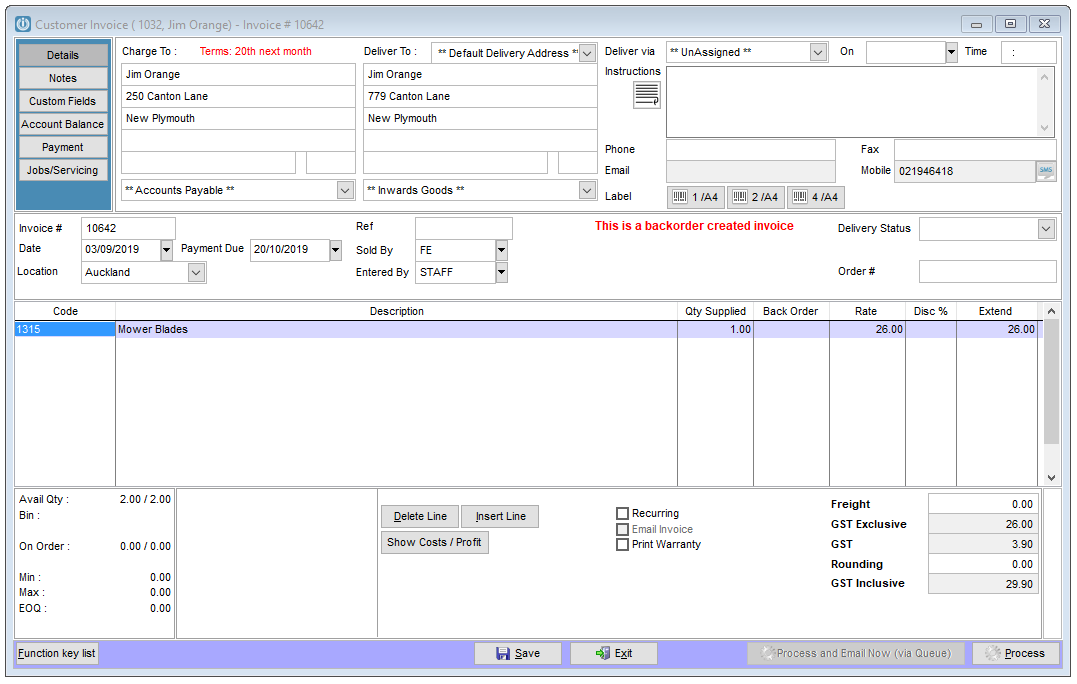
- Selecting View will display a preview of the invoice that will be created.
- Untick the box in the Process column for any Backorders that you don’t want to fill.
- Selecting Process will create Pending Invoices for all Customers for all line entries having their Process column ticked.
Note: As mentioned above, to consolidate Backorders that have been filled for a particular Customer so they are placed on a single invoice, select the option to Consolidate Backorders from Admin / Defaults / Manage Customer Defaults / Preferences.
Comments
0 comments
Please sign in to leave a comment.