The Electronic Marketing option is available under Customer / Electronic Marketing menu. To get the best out of Electronic Marketing it is recommended that the set up of the Types, Groups etc is checked for Customers and Products.
Output
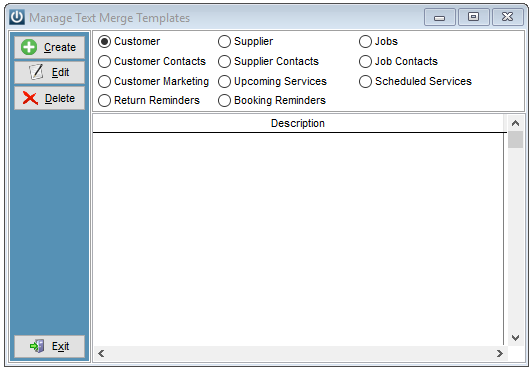
Templates can be selected from the first drop down, it will show saved or users can Create or Edit new Templates for SMS's.
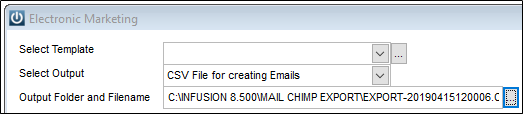
Select Output will allow the selection:
- SMS Messaging, which has a limit of 160 characters per message, exceed and it counts as a second message
- CSV for Creating Emails, use for services such a Mail Chimp
- CSV File for Mail Merge for programs like MS Word

Changing the Output changes the third selection. If saving as a CSV File, we recommend creating a sub folder within the Infusion Folder on the Server. This will ensure all users have access and it is a know location.
Customer Selection
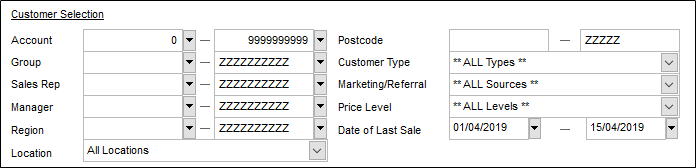
The Customer Selection parameters screen works just like in any area of the program. But, if you want to select all of your Customers in Infusion Business Software, delete out the first date of Last Sale. Or Send to Specific Customer Types, Groups, Price Levels etc.
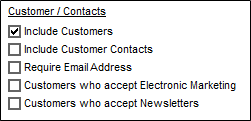
These options define who are going to be selected in the report. Include Customers must be ticked.
If you wish to use Direct Marketing, you are required to ask your customers if they wish to accept Electronic Marketing Information. Only then can you tick the box to accept Electronic Marketing. If they ask to be removed you must do so immediately.
It is illegal to send Customers Electronic Marketing without their approval under the Unsolicited Electronic Messages 2007.
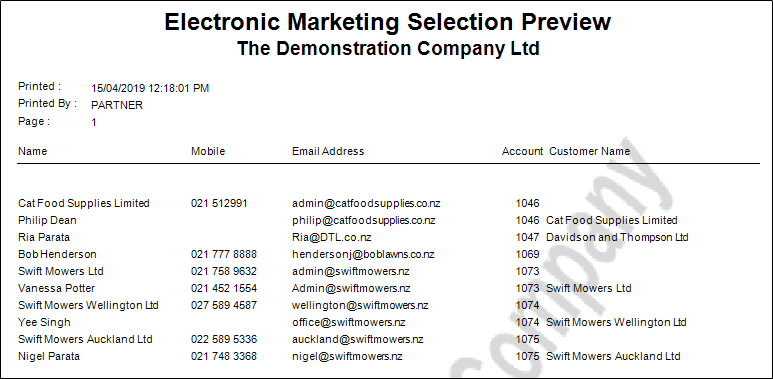
If Include Customer Contacts is Selected, they will show in the list and the Customer will appear under Customer Name, as below Cat Food Supplies, Davidson and Thompson and Swift Mowers.
Sales Analysis Section
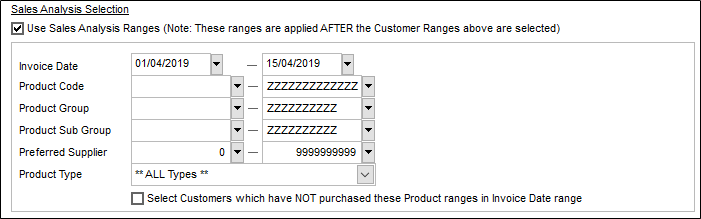
By ticking Use Sales Analysis Ranges, this parameter screen becomes active. It will allow the user to extend out the use of Electronic Marketing to send to Customers who purchase from specific Product Codes, Types, Groups etc, eg to send to Customer from Group A who purchased from Group D.
Preview, Generate and Exit

Generate will create the file or the SMS record.
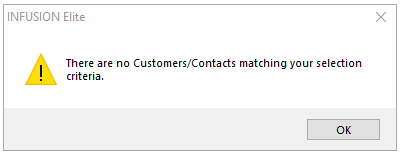
Look again at the Selection Criteria or the Customer Data if this message appears. Nothing currently fits within the selection parameters.
Comments
0 comments
Please sign in to leave a comment.