There are 35 columns that are available to be displayed on the Manage Job Screen. It is very unlikely that these will all need to be used.
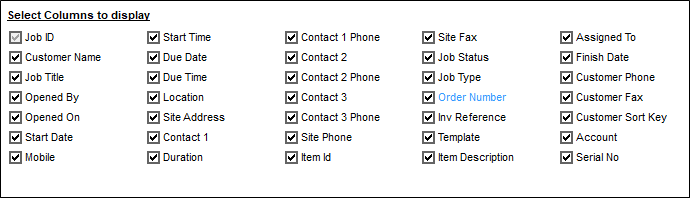
But it is well worth customising the screen so that the relevant columns are displayed for each user. Please see How Do I Add or Remove Fields from My Screen
Looking at the Details Screen of each job, the following information is drawn from
- Job ID
- Customer Name
- Job Title
- Opened By
- Opened On
- Start Date
- Mobile
- Start Time
- Due Date
- Due Time
- Location
- Duration
- Item ID
- Job Status
- Job Type
- Order Number
- Template
- Item Description
- Assigned To
- Finish Date (This shows when Completed Jobs is ticked)
- Customer Phone
- Customer Fax
- Customer Sort Key
- Account
- Serial Number
The Site Details screen will provide
- Site Address
- Site Phone
- Site Fax
From the Contacts Screen
- Contact 1
- Contact 1 Phone
- Contact 2
- Contact 2 Phone
- Contact 3
- Contact 3 Phone
On the Invoicing tab
- The Order number can entered here as well
- A Reference can be entered and displays in the Inv Reference column
Comments
0 comments
Please sign in to leave a comment.