Internal Build
The simplest way to use the process is to add the items needing to be made to a Job for an Internal customer account.
Enter the Quantity to be Built in the Qty to Build column.
Remove the Default 1 value form the Quantity (sold) column.
The Quantity Required column (QTY Reqd) can also be entered but is not mandatory

The items required for the Production can be passed through to the Bill of Materials (BOM) table by using the Production Button.
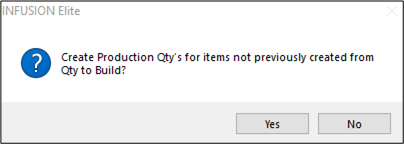
A confirmation screen will display how many items have been sent to Production
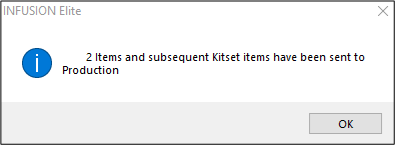
NB – issue noted: if the user uses the Production button, but doesn’t save the job – the software will flag the Job Lines as having been sent to Production but will not create the Bill of Material BOM table records. Subsequent use of the Production button will not send the items to the BOM table.
When the items have been sent to Production, a tailored Jobcard can be created and given to the production department for manufacture.
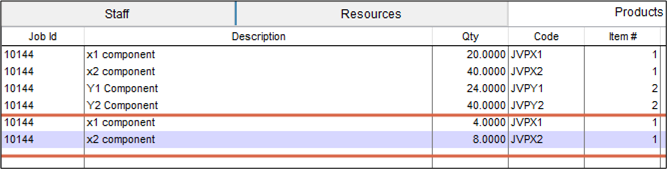
The Production screen will display the products that are required for the Production process

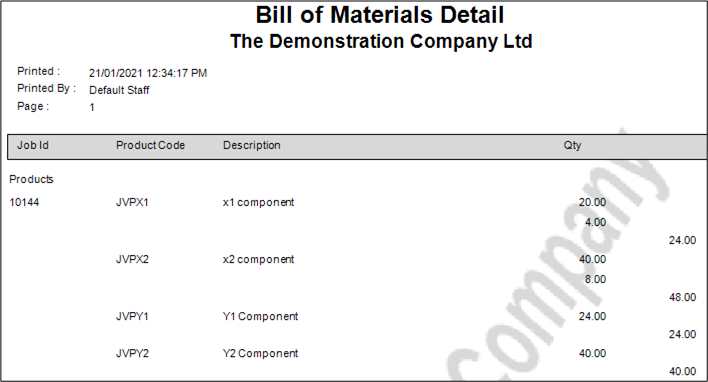
The component products to be used in the Production will also display on the Bill of Materials Details Report.
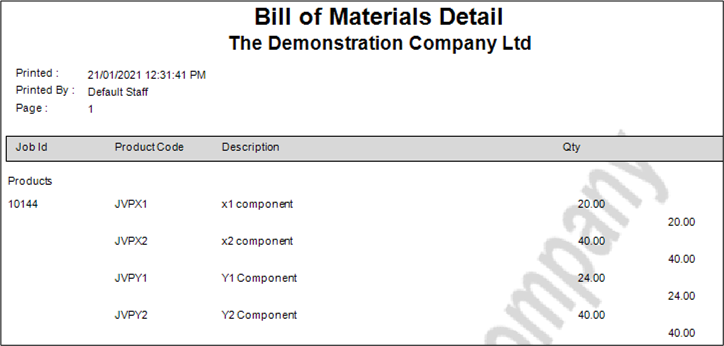
Additional items can be added to the Quote, assigned to the same Job and also sent to Production. They will appear on the Bill of Materials Detail Report also.

When the items have been manufactured, the Qty Built value is updated on the Job screen, either by double clicking in this field or by entering the quantity manually if the value is different.


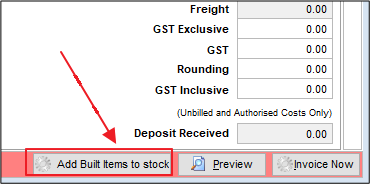
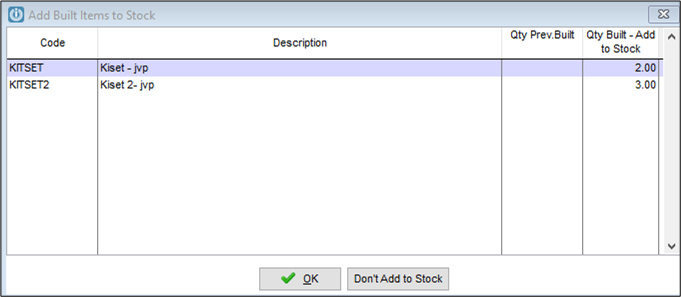
To add the items into Stock, select the 'Add Built Items to Stock' button at the bottom of the screen.
This will display:
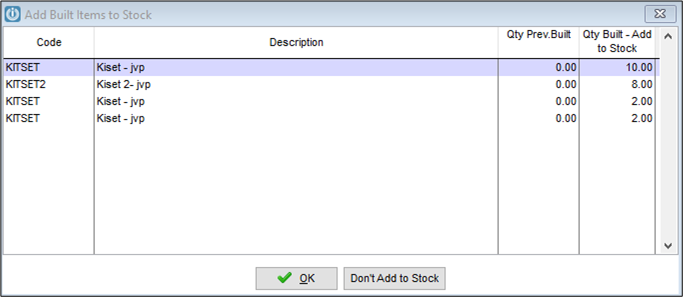
Selecting OK will update the stock on hand figures for the item(s) and populate the 'Qty Prev. Built' value on the Manage Job screen

If the job was solely a Production job, it can then be marked as “Completed”.
Issues noted during testing:
Currently, a warning is issued that the job has unbilled costs on it.
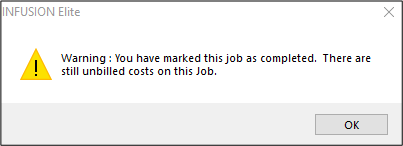
The Work in progress (WIP) reports will include these lines with zero value.
These issues will need to be resolved in the future.
Production Build Required for Customer Order
A quote can be generated for a specific Customer order that requires items to be Produced.

When the quote is accepted, the quote will be assigned to a new job and the lines that are to be built can be assigned to the job using the 'Assign Quoted' option.
This will prompt with the following screen which allows a quantity to be added to the Job to be built.

The job will now display the item(s) to be built.

Again, the Production button can be used to transfer the required kitset products to the Production screen and the Bill of Materials Report.
If new Items are added to the Quote or quantities on an existing Quote line are increased, these can be assigned to the Job and sent through to Production, using the same process.

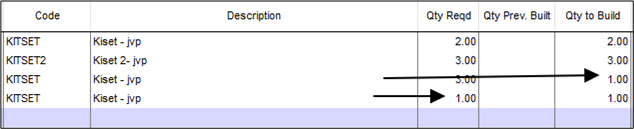
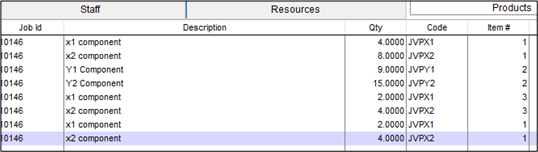
When the items are built, the user will populate the Qty Built column and add the Built Items to Stock. This will remove the kitset compoents from Stock and add the Kitset parent (When Received) into stock.
The Items must now be sold to the customer, so that the kitset items are removed from stock.
Use the SellAll button on the Manage Jobs screen.
A prompt will come up asking for the Date for the Items to be Sold.
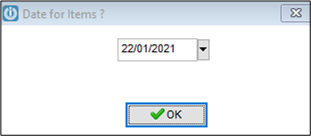
This will redate the lines on the Job if it is different to the date the lines were assigned from the Quote.

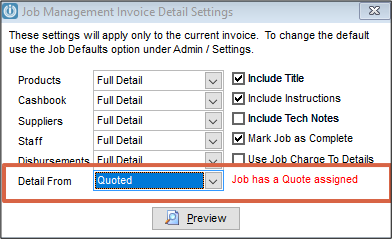
The Job is ready to be invoiced, and the “Detail From” for the invoice will normally be “Quoted”.
Comments
0 comments
Please sign in to leave a comment.