From Version 8.526 the ability to Transfer Stock via a Stock in Transit Location is introduced.
The stock leaves the “From” destination on processing and sits in the Stock in Transit location until the system generated pending transfer is received at the “To” location.
The Stock in Transit is a special system assigned location and is unable to record any Min/Max or Bin locations. It is not available in any transactions in the system other than Product Transfers.
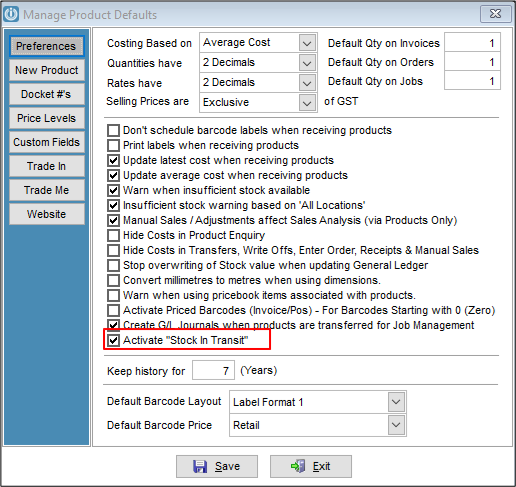
To Activate Stock in Transit
Product Defaults
Admin / Default / Product Defaults
Tick Activate “Stock in Transit”
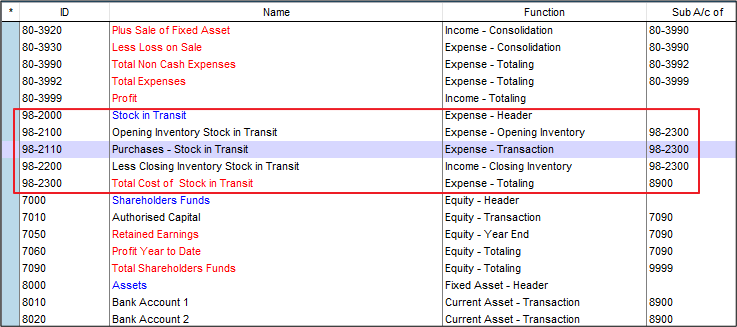
Set Up GL Accounts
If required, new GL accounts can be created for opening and closing stocks, and purchases for the stock in transit location.
This will allow the Update Stock Value to the GL utility to include the Stock in Transit as a separate line on the Profit and Loss. It it is recommended to add these in at the bottom of the expenses.
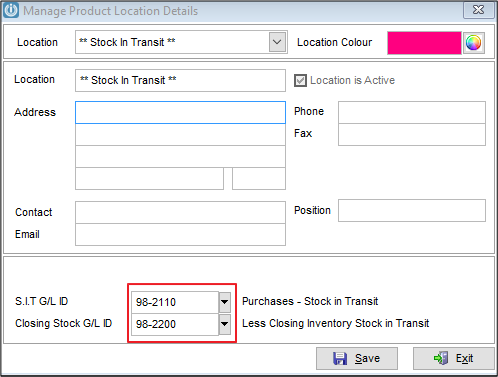
Update G/L ID for Stock in Transit Location
Admin / Settings / Products / Manage location
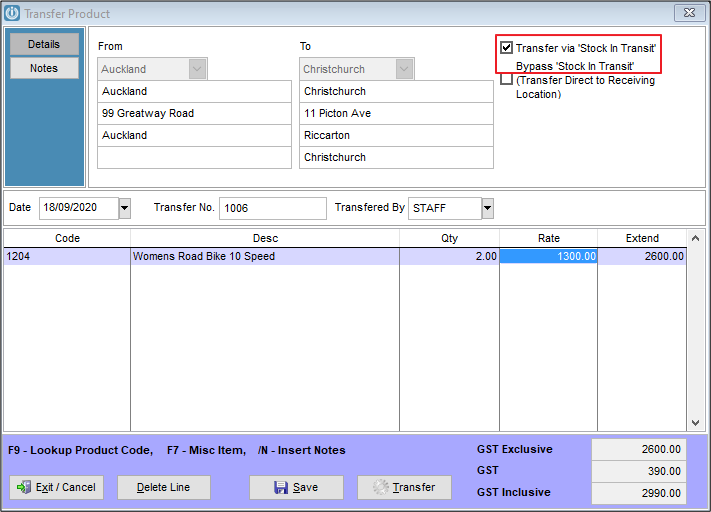
Transfer Products Via Stock In Transit
Starting the Transfer
Products / Transfer products
Select the From and To locations as normal.
You will then have the option to select how to Stock is transferred – Via “Stock in Transit” or direct to location – Select Transfer Via “Stock in Transit”. Add products and select Transfer.
Stock in Transit can be viewed on the Product Enquiry / Quantities screen, the Product Details Panel and in Product Valuation and Product Status reports.
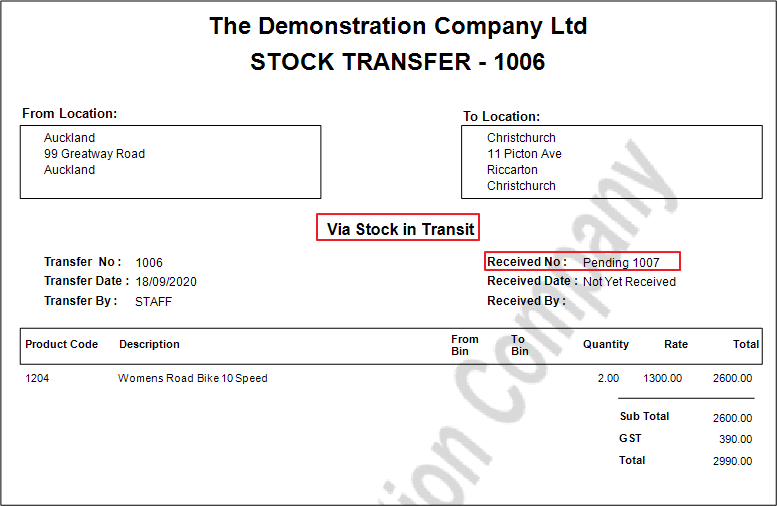
The Stock Transfer report now shows the details of the pending transfer. NOTE that the Pending Transfer has a different number.
Identifying Stock in Transit on Products
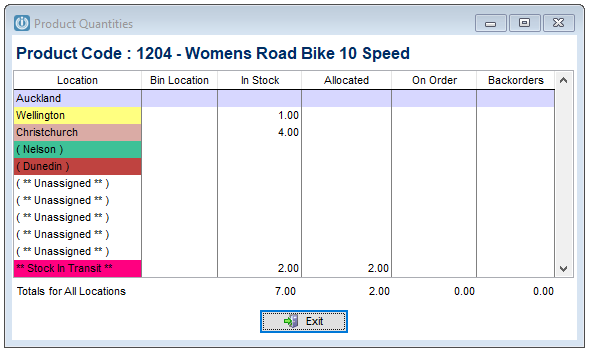
On the product the Location **Stock In Transit** shows the quantity that was transferred.
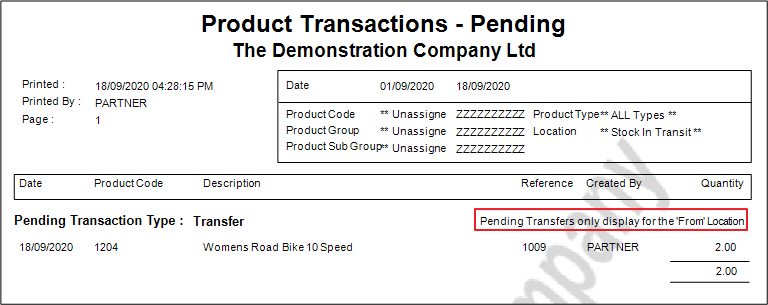
Use the Product Transactions - Pending and select Location **Stock in Transit** to view the Transfer that is not completed.
Receiving the Transfer
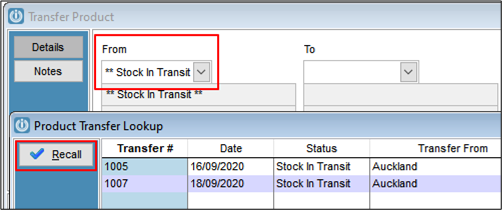
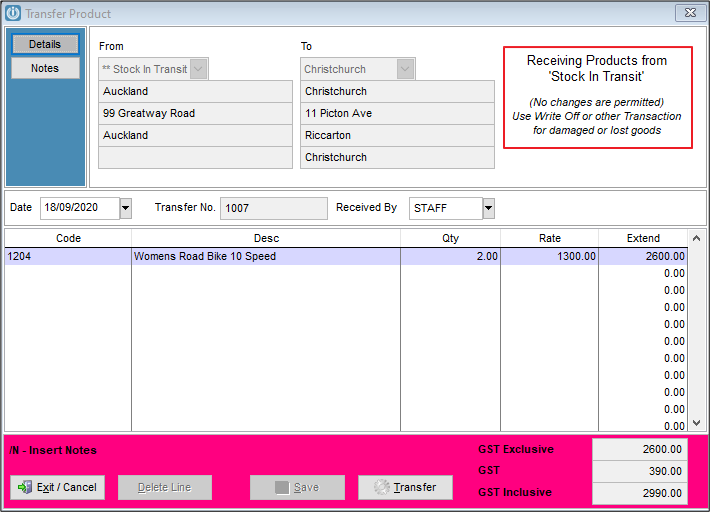
To Transfer from the Stock in Transit location, select Stock in Transit as the From location. Recall and confirm the Transfer, using the Transfer Docket to check the Transfer Number.
The transfer is not able to be edited at this point. Any adjustments for lost or damaged stock will need to be made either at the sending or receiving location.
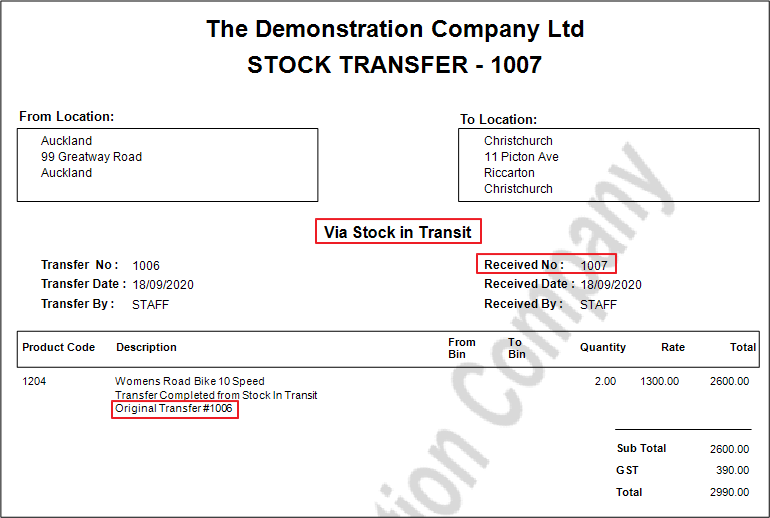
The Stock Transfer report now shows the Receipt details of the Transfer. NOTE, the original Transfer number is in the body of the transfer under the products.
Importing Products – Location Data and Stock in Transit
Location 96 is a system reserved Location for Stock in Transit and therefore any imports with Location 96 will be ignored by the import routine.
Bin Locations and Minimum Maximum figures are not able to be recorded for the Stock in Transit location either by importing or by entering onto within the Modify Product screen.
See Stock in Transit - Updated Reports
Comments
0 comments
Please sign in to leave a comment.