Introduction
- This feature allows supplier invoices from Stihl to be imported into SPROCKIT™ for end user approval or automatically processed.
- This service provides end users with incredible savings in time and cost of data entry.
- All Invoices are automatically downloaded from the Stihl Clearing Centre via the Digital Invoice Import solution.
- If Xtracta is already enabled in the software, the Digital Invoice Import screen will have a dropdown option to switch to the Stihl Invoices import.
- The Stihl Invoices import is available from version 8.458 onwards and there is no need for additional setup.
- There is no extra charge for using this option.
SPROCKIT™ Setup
Stihl EDI Defaults must be in place.
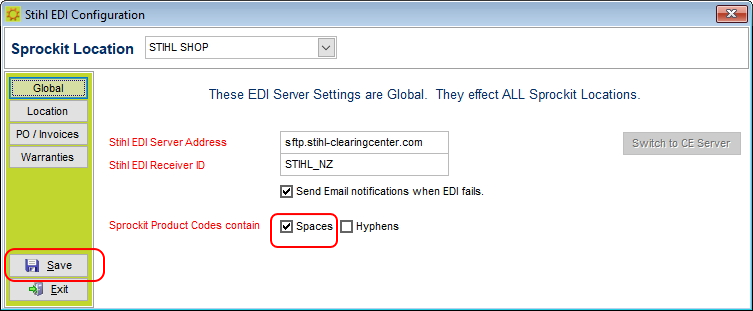
Open the Stihl EDI Defaults screen and ensure the tick-box for Spaces is selected in the Global tab – this is a new flag that has been added to the software and although it is selected by default, you MUST SAVE this screen once, to ensure the flag is properly set in the database.
Any existing Stihl Pricebooks must be mapped to the Product Types, Groups and Sub Groups in SPROCKIT™. We recommend that old pricebooks are removed from the system and only the current one is kept. Moving forward, new Pricebooks should be imported on top of the current Pricebook.
SPROCKIT™ Product Codes must have Stihl set up as a Supplier.
Process
Selecting the Digital Invoice Import / Process option from the Supplier’s menu will open the Digital Invoice Import screen.
If Xtracta is enabled in the software, the user must select the Stihl - Invoices option from the Import Source drop down.
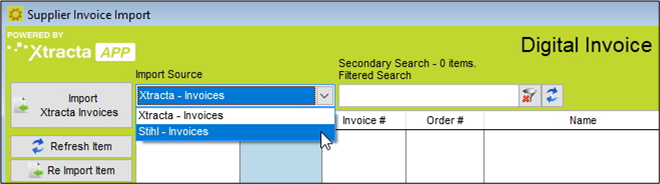
Clicking Download Invoices from Stihl imports the Invoices and adds them to the top section.
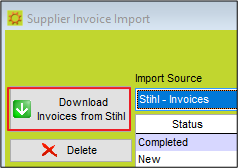
Buttons on the sidebar:
Download Invoices from Stihl: Imports new Invoices found on the Stihl Clearing Centre. Imported invoices in the top section of the screen are waiting to be processed into the Supplier account.
Delete: Deletes an imported Invoice from this screen, which hasn’t affected stock or Supplier account yet.
This option is available because an Invoice may have been processed manually by the end user via the Purchase Orders screen before it was downloaded from the Stihl Clearing Centre. Please note: If you delete an Invoice, it cannot be downloaded again and will have to be entered manually via the Purchase Orders screen, the end user may have to request copy of the document to Stihl.
The Digital Invoice Import screen is able to import and process correctly the Stihl Credit Notes, despite the fact that in their Credit Notes all values are positive.
However, Credit Note documents MUST be for credit lines only, not recharges on the same document as there is no identifier in the source document that a line is a recharge instead of a credit.
Documents with a combination of Invoice and Credit Note in the same file will NOT be handled correctly by the import; these will have to be deleted form the Supplier Digital Invoice screen once downloaded and entered manually by the user.
Highlighting an Invoice on the top section selects it for processing.
The middle section will display the available information of the Invoice header.

- Our Order # – If the downloaded Invoice has an order number this box will be filled. You can also manually select outstanding Purchase Orders in SPROCKIT™.
- If it matches against an existing Purchase Order in SPROCKIT™ these will be linked together and the products ordered/supplied are compared.
- If there is no Purchase Order in SPROCKIT™ a checkbox appears in the bottom section where you can select “Our Order # not found, Use Order # from Imported Invoice as Our Order #?” If it is left unticked the next default Purchase Order number from SPROCKIT™ will be used.
- Supplier –this field will be filled automatically with the Supplier account set up for STIHL
Below is a sample of the types of information that will display in the bottom section
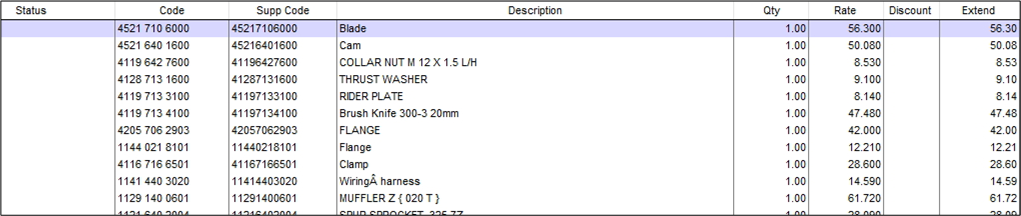
- In the example above, all Products already exist in SPROCKIT™. These would have been matched with the exact Product Code or to a Product where the Supplier code matches the Supplier. In this case, nothing is displayed in the status column as there is nothing to resolve.
- If a Code did not match to any existing product, the software will first search for it in the Supplier Pricebook. The status column will inform that New Products will be created from the Pricebook when processing the Invoice. Please note: the Pricebook must be mapped in order to create the new products with the correct settings and be able to record serial numbers if applicable.
- If a Code cannot match to an existing Product or a Pricebook, the status column will inform that the Code is not found and a few different processing options become available when having the cursor in the "Code" field:
- F8 – opens the GL ID lookup to code directly to a Financial General Ledger Code. A Product will not be created. Tip: once you select the GL code you can right click again and auto fill the remaining lines with the same GL code.
- F9 – opens the Product lookup, this will attach that Supplier's Code to an existing product in SPROCKIT™.
When you have highlighted a line item, more information shows in the bottom left hand corner. This will show information about the Order, Product Code and Serial Numbers listed.
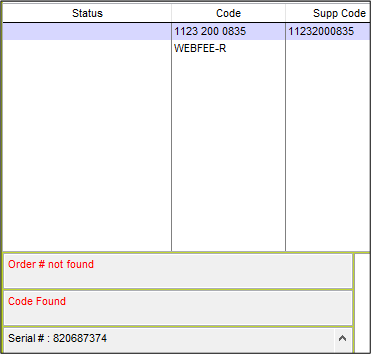
Other options available under the line items grid are:
Auto Process: Will bypass all preview options and process the Invoices immediately. Error checking is performed and if there are errors, the normal data entry screens will open.
Process Review: Will send the data through to the normal data entry screens of a Purchase Order.
Keep Description: Will retain the supplied description for new Products and GL lines.
Remove Lines with no Qty: Will remove lines without a Quantity. This includes notes and backorders.
Rounding Limit: Will automatically apply a rounding up to a pre-set amount.
When the Invoice is balanced, selecting PO Invoice will process the Invoice:
EXAMPLE - MATCHING TO PURCHASE ORDERS
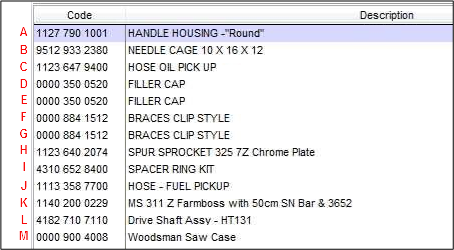
Existing Purchase Order already in SPROCKIT™:
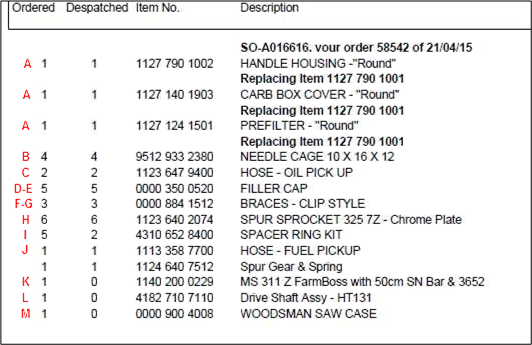
Invoice from Supplier:
Digital Invoice Imported from Stihl
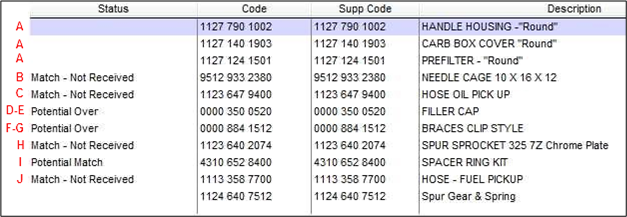
How the transactions interact
LINE A We ordered 1 Product, but the Supplier shipped 3 different products that make up what we ordered. Or our Product could have been Superseded with a new one.
Let’s look at only these transactions where we opened the Invoice in "Process, Review". We have a couple of options. Do we want to bring in the 3 separate Products or the one Product we ordered?

Option 1 – We want to bring in the 3 separate Products. We no longer want 1 on order for the first line, instead we want to receive the following 3 lines. Change the order quantity of 1 to on the first line 0 so it is no longer on order.

Option 2 – We want to bring in the first line which is the Product we ordered, not the individual parts on the following lines, so we change the quantities on the component lines and receive 1 quantity of the original code.

LINE B The status of B is “Match – Not Received”. It means the software has found an exact code/quantity “Match” on the Purchase Order. “Not Received” means that the product is on order and nothing has been received on it yet.
The same also applies to C, H and J.
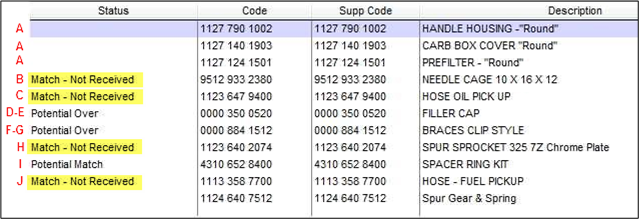
LINES D and E On our purchase order we ordered a total quantity of 5. This is made up of line D for stock (4 qty) and line E for a Job (1 qty). The Supplier shipped all 5 on the same line in their invoice. The status on our imported Invoice is "Potential Over".
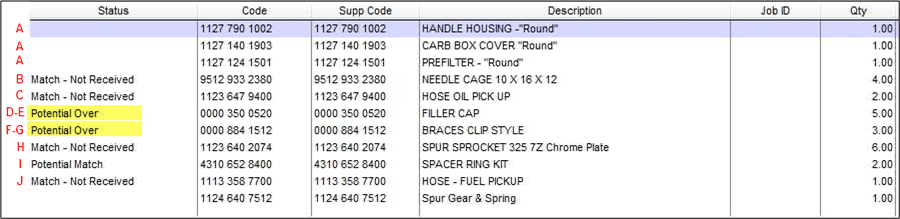
SPROCKIT™ has found the first line of the Purchase Order with the matching Product Code and the Supplier has shipped more. If we "Process, Review" and click the 'PO Invoice' button it has correctly split the quantity across both lines.
The same applies to lines F and G.

LINE I We ordered 5 products, the Supplier has only shipped 2 Products, leaving 3 on backorder. This creates a "Potential Match", that is, SPROCKIT™ has matched the Product Code but the quantities don’t match.
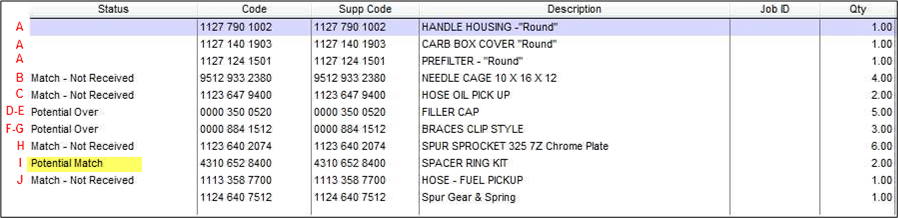
If we "Process, Review" and click the 'PO Invoice' button it has correctly received in 2 Products.

Lines K, L and M These are all ordered and now on backorder by the Supplier.
Unidentified Line The Supplier has sent code 1124 640 7512 that was not on our original order.
Serial numbers are imported as well, you can see the corresponding serial numbers that belong to each product line that includes them.
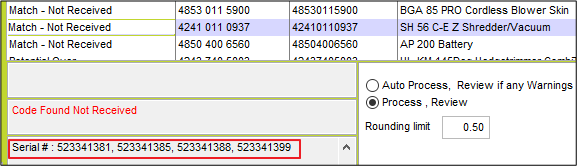
If the matched Product Code in SPROCKIT™ is also set to track serial numbers on Purchases, processing the Invoice automatically bring in the serial numbers.
USING JOB NUMBERS AS ORDER NUMBERS
Some business use the Job Number as the Order Number when purchasing parts off Suppliers. If the Order Number does not match an existing Purchase Order, SPROCKIT™ will then check if there is an open Job with that order number. If it finds a matching open Job a new check box will appear above the processing buttons.
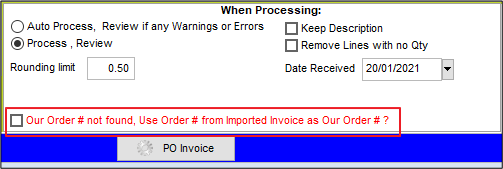
Our Order # not found. Use Order # from Imported Invoice as Our Order #?
This will create a new Purchase Order with the same number as the Purchase Order. Tip – this can be edited in the review stage, if you have the default setting switched on in Supplier Defaults to allow overwriting of Purchase Order numbers.
This appears to be a Job Management Invoice for Job # 10129 for Martin Zen. Process as NEW Job Management Order? This will create a new Job Management Purchase Order. Each line on the Purchase Order will be auto filled with the Job number.
Comments
0 comments
Please sign in to leave a comment.