The Direct Debit module allows for Direct Debit Customer Payments to be created within Infusion and the transactions entered straight into the Bank Reconciliation. An extract file is created and sent to the Bank in order for the Direct Debits to be processed and deposited into the Bank Account in ‘real time’. This is an alternative method to the manual process of allocating payments off a statement on to a Customer’s account.
Current Direct Debit Supported Banks
Presently Infusion can support Direct Debit functionality to the following banks:
- ASB (TXT extract file)
- BNZ (AFI extract file)
- National (TXT extract file)
- Westpac
Example AFI Format

Example TXT Format

Setup
Direct Debit is included in Elite and Professional Packages.
Several default options need to be set before Direct Debits can be used. Under Admin / Defaults / Manage Customer Defaults is the Direct Debit settings tab.
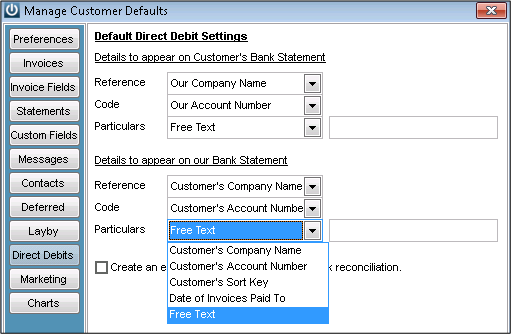
There are a number of default text options that can be set to appear on both your and the Customer’s Bank statement. Any of the following information can be set from the dropdown boxes to display in the Reference, Code or Particulars section of the relevant statements:
Details to appear on Customer’s Bank statement
- Our ‘Company Name’
- Our ‘Account Number’
- Our ‘Sort Key’
- Date of Invoices Paid To
- Free Text (as specified in the text box to the right of the desired field).
Details to appear on your Bank Statement
- Customer’s Company Name
- Customer’s Account Number
- Customer’s Sort Key
- Date of Invoices Paid To
- Free Text (as specified in the text box to the right of the desired field).
Selecting the ‘Create an entry for each Customer in the bank reconciliation’ setting will give rise to individual entries on the bank reconciliation for each Customer Payment made as opposed to a lump sum for all payments. (**Direct Debit payments that have been exported and created in the Bank Reconciliation will appear as individual entries per customer. Multiple invoice transactions, paid as one direct debit transaction for a customer, appear as a single entry for the customer.**)
To use the Direct Debits module you will need to have filled out the appropriate paperwork with your bank to give you authority to create a Direct Debit payments file. In doing so you will have been allocated an authority number which needs to be entered in against your Bank Account(s) within Manage G/L IDs under the field D/Debit Authority No.
Not all banks require a Direct Debit Authority number but failing to provide this when it is needed will result in the Direct Debits file not being processed by the Bank

The Direct Debit Details section under the Terms/Pricing tab within Modify Customer also needs to be set up.
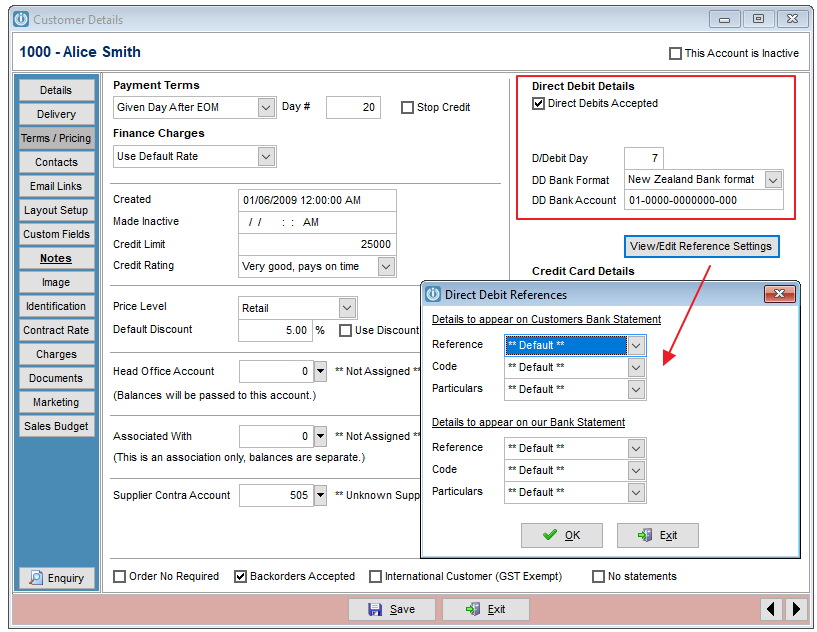
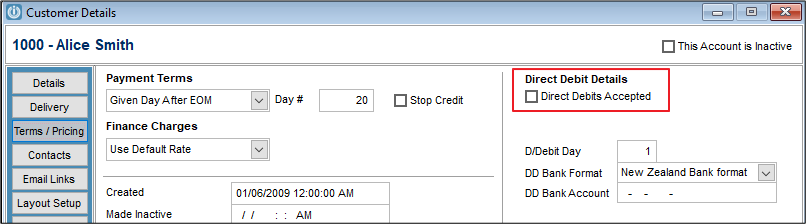
Selecting the Direct Debits Accepted tick box will activate the Customer for this functionality
If the day of the month a Direct Debit export file is prepared on is equal to or greater than the D/Debit Day setting against a Customer, an entry will be in the file automatically (if there is an amount needing to be paid)
The DD Bank Account is the Bank Account Number of the Customer that the Direct Debit will be coming out of.
The View/Edit Reference Settings refers to the ‘Customer Bank Statement’ and ‘Bank Statement’ Code, Reference and Particulars Settings in Direct Debit tab within Manage Customer Defaults. The settings set here are global but individual Customer settings can be set to override these within the View/Edit Reference Settings.
Preparing / Exporting Direct Debits
For a Direct Debit file to be created there must exist one or more outstanding Customer transactions with their Invoice Due Date being prior to the Direct Debit file date.
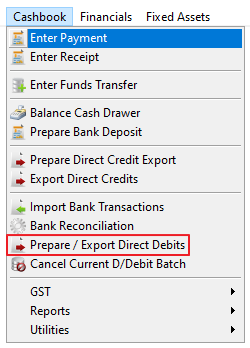
From the Cashbook dropdown Menu select Prepare / Export Direct Debits.
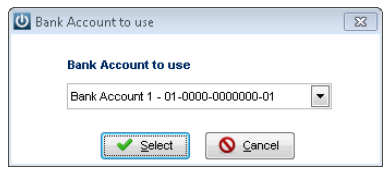
A prompt for the Bank Account into which the Direct Debits will be processed will appear. Direct Debits for only one Bank Account can be prepared at a time.
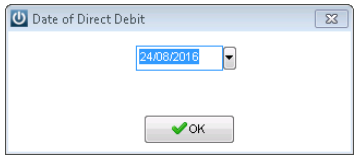
The Date of the Direct Debit file is specified next. The conditions needed for this Date to pick up the desired Direct Debit Customer transactions are:
- The Customer’s D/Debit Day must be equal to or later than this date in terms of days of the month (1-31).
- The Invoice Due Date must be equal or prior to this date in terms of a valid date.
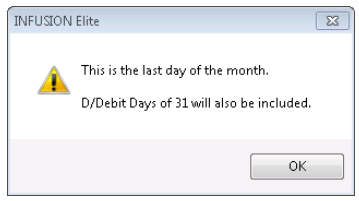
In months where there are not 31 days eg February, April, June, September and November, when you run the Direct Debit export for the last day of the month the remaining days of the month will be included in this. Customers with a Direct Debit Day of 31 will be included in a Direct Debit run for the 30th day of a month provided that month only has 30 days.
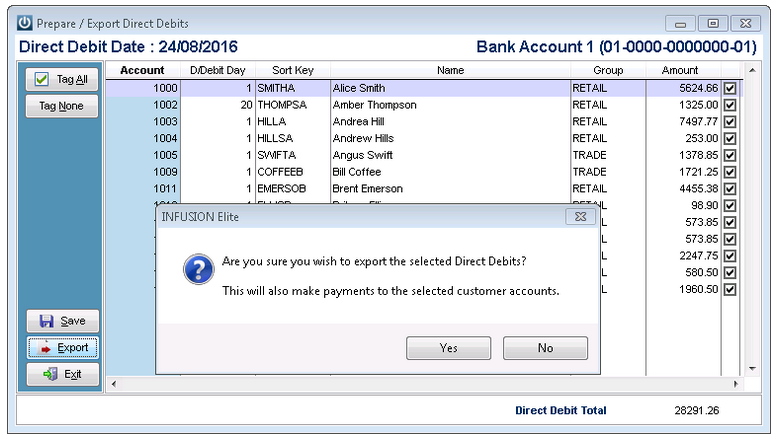
From here a list of Direct Debits that meet these date conditions will display automatically in the Prepare / Export Direct Debits window. These must be tagged to be selected for Export and have the Direct Debit Payment created. Any untagged Direct Debit entries that remain when the Export goes through will not be actioned; these can be scheduled again at a later date.
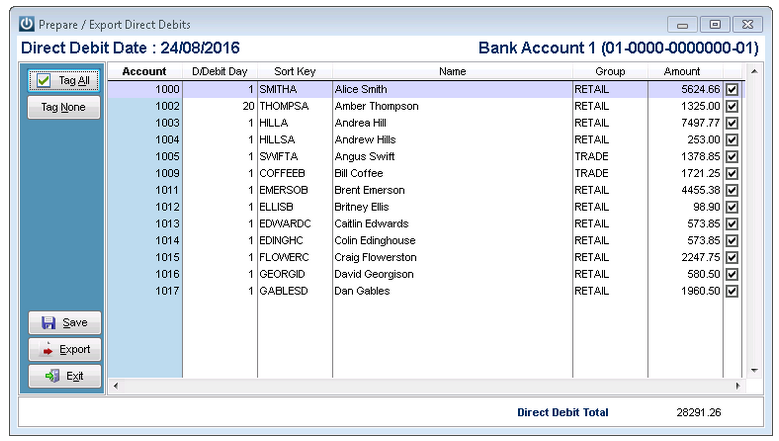
Any other Customer transactions for a Direct Debit Customer subsequently created that meet these date requirements will be added to this list. There is no need to Prepare / Export Direct Debits again to pick up these transactions that were generated at a later date.
Select the Save button to save the list of transactions displayed. This will allow a list of scheduled Direct Debit payments to be printed - Select Yes or No at the prompt.
If Direct Debits need to be cancelled for whatever reason (eg Running Direct Debits for wrong date) these can be cancelled in the Cashbook menu by selecting Cancel Current D/Debit Batch and Yes at the prompt.
From here Direct Debits are ready to be Processed and Exported.
The Direct Debit Schedule will show all Direct Debit Entries created within Infusion and exported in the extract file.
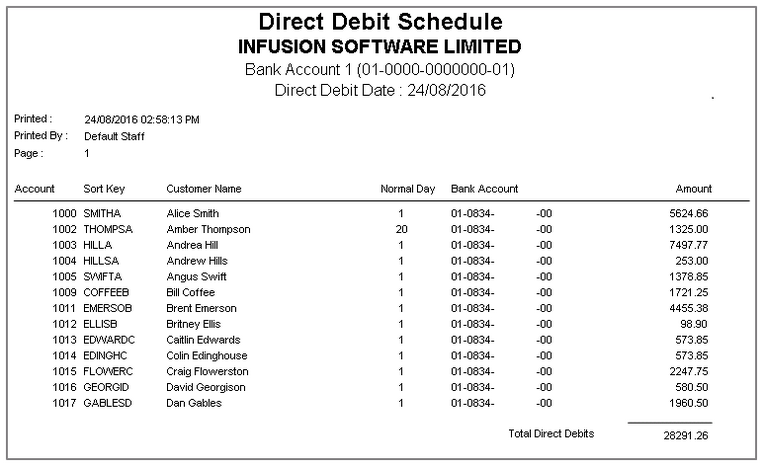
This can be retained to check against Bank Statements for incoming Direct Debits.
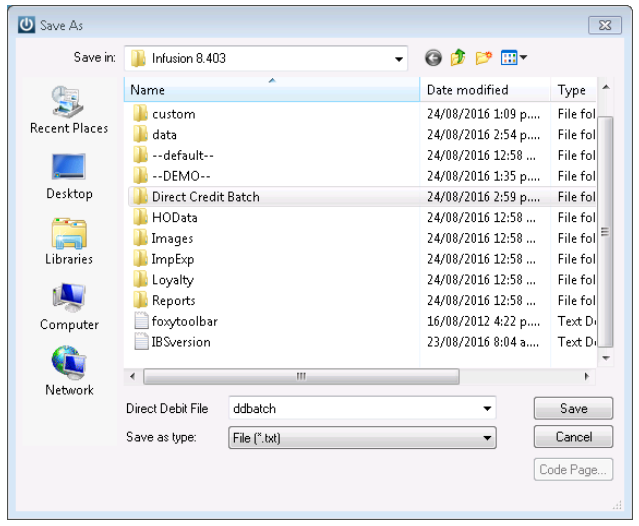
After printing or not printing the Direct Debit Schedule a Save As screen will appear prompting for a location to save the extract file (TXT or AFI depending on what Bank is being used). The default location will be within the Infusion directory. This file will still need to be sent to the Bank. Infusion does not undertake this task by itself.
Upon completing all of this a confirmation message will display.
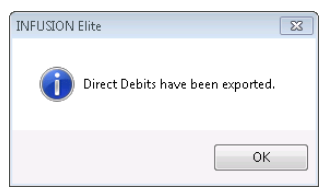
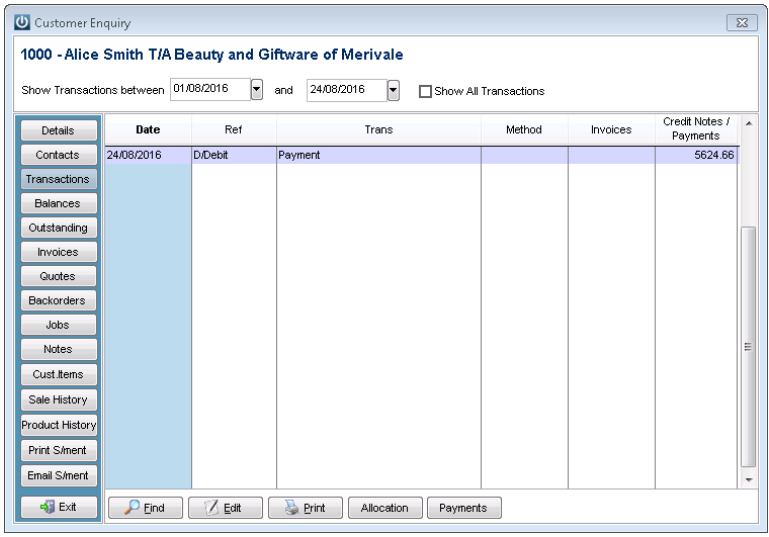
After confirmation of the export the associated Customer accounts will show a Payment made against them with a Reference of D/Debit, dated that of the Direct Debit file and allocated to the previously outstanding transactions.
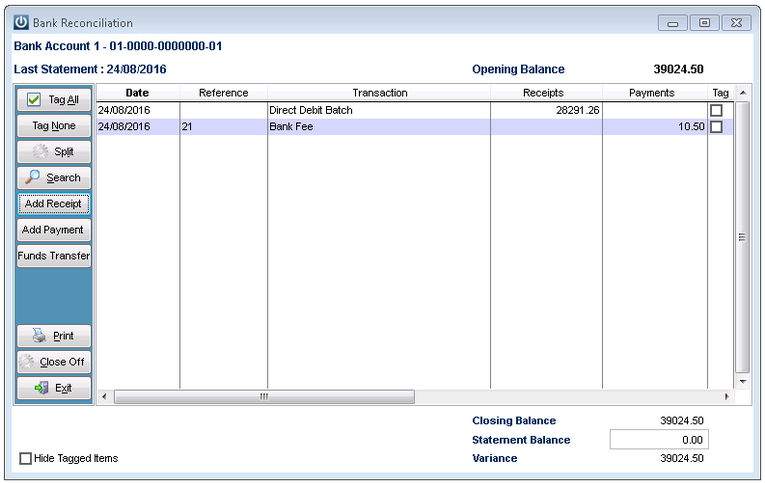
This Payment entry will also show on the Bank Reconciliation for the desired Account. This is to be reconciled against the Bank Statement for this account.
Comments
0 comments
Please sign in to leave a comment.