An Error Occurred with Printer
If you get the following error when trying to preview a label it means that the label layout in Infusion won't fit on the label the printer is setup for.
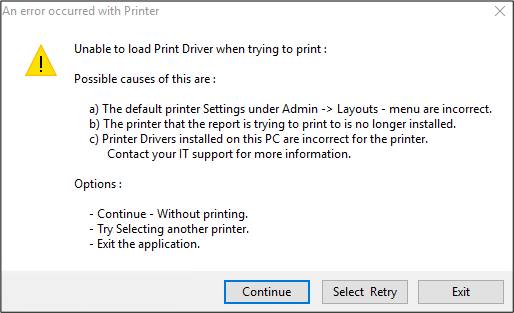
To fix this go to the Report/Label Editor.
Layout is sitting outside the page
If the layout is not sitting within the label or the label sits on the label perfectly but there is a black line in the grey area the page setup has changed.
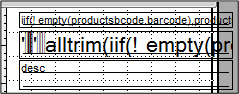
To fix go to File / Page Setup
click on Page Setup
and make sure the Paper size is correct.
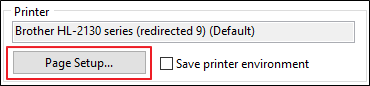
If the paper size is not correct, un-tick Save printer Environment, then click OK.
Exit out of the layout screen and save changes.
Go back into Page Setup and select the correct paper size then tick Save printer environment, click OK and exit layout editor and say yes to changes. For label printers a label (Stock) of the appropriate size may need to be created and then this can be selected in the Page Setup.
If this is not the issue then you need to check the Printer drivers on the computer to see if the default printing labels have been changed. (Make sure you check the advanced settings if a Dymo label printer as they have two places that store label sizes, as per Dymo printer manual).
Printing a Blank Label for no reason
Before the following, if this a ZDesigner printer, see Label Printer Settings for ZDesigner the printer will need to be calibrated.
Also check the setting for the label, it has been seen when adding a new computer or moving to the hosted server, all prior information was lost.
A label printer was printing a blank label after each label for no discernible reason. There may have been some corruption in the code.
In Command Mode
Use custom\barcode6.lbt
BROW
Check the memo fields, particularly on the top line of the code.
If it does look corrupt, start again with a fresh copy of the label.
Comments
0 comments
Please sign in to leave a comment.