This document covers general import and exporting of data within Infusion software. It does not cover the Import / Export Module.
Importing Data through Manage Import Routines
Introduction
The Admin Menu has options to enable the import of data into tables such as the Products, Customers, Suppliers and Financial Chart of Accounts.
To import in data first an import routine must be set up defining the mapping of the data fields. Each table has one or more compulsory fields eg a product code column must be specified in a product import definition. This routine is checked and saved.
The import routine should only be run after a backup has been taken as there is no checking of the data being imported.
An example of how to set up and import a range of Products follows:
Set up a Product Import Definition routine:
- From Manage Import Routines select **Create New Routine**, chose a Data Type of Products and give the import routine a title. Select fields from the Available Fields box to match the columns of the supplied Products file. Typical fields would be: Product Code, Description, Group, Latest Cost, Selling Price 1. If there is a column in the file not required use the “IGNORE” Available fields option to skip this.
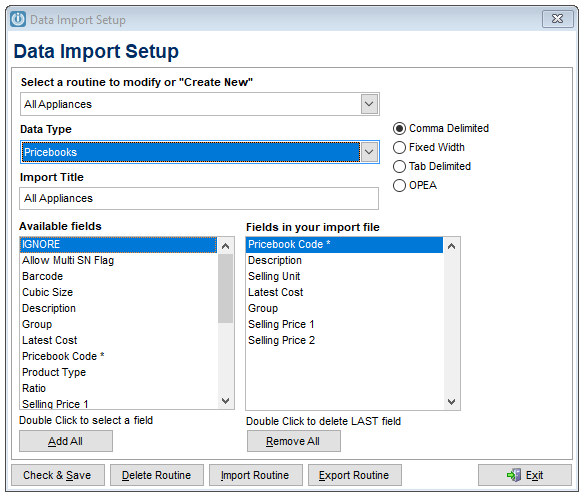
- Specify the type of file eg comma delimited, fixed width, tab delimited being imported
- Check and save the import definition routine
Before importing any data check the source file you have been sent/given:
- Saving a CSV File with the Correct Data Format
- Ensure the field layout matches the import definition routine that has been set up
- Ensure there are no “ characters or , characters in the any of the columns or fields. Check this by opening in Excel or Notebook and doing a Find for those characters
- Do a Backup – there is no error checking of the data being imported so this is very important.
Import Data
- Run the Import Data routine, selecting the import definition routine, and the source file. The source file needs to come from a network drive (C:\ is also fine) The import function does not like files saved in your documents library.
- If the file has come from one supplier you can select the supplier

Import Routines (*.IID) can be imported and exported from the Data Import Setup screen. This allows a routine that has been created to be exported from the current software and imported in to another installation of Infusion negating the need to set up the routine again.
See Importing Data from the Admin / Import Data Menu for a more detailed explanation.
See price book imports for a information on how to manage a pricebook.
Importing Transactions
When importing into Infusion it is important to note that you are not importing a whole transaction as may have been possible in other Accounting programs. A record that will show in the respective enquiry window is all that is being imported to give accurate historical transaction history. The need for “” quotation marks in some fields is no longer necessary either. The import file must be in a csv file format and contain no superfluous data
Customer Transactions
Transaction Type Always 4
Debtor A/C Number This must exist in Infusion
Date dd/mm/yy or dd/mm/yyyy
Description Transaction description
Amount Including GST or Sales Tax
GST Type eg I=Inclusive, X=Exempt, Z=Zero
Transaction Type I = Invoice, J = Journal
G/L Code Associated Income / Expense acct
Reference Keep blank if not required
Notes:
Invoice & Journals are Positive. Customer balance will be updated once the transaction has been imported and an audit file showing what data tables have been updated can be generated when right clicking on the imported transaction in Customer enquiry.
To import full Customer Invoices see the Invoices Imports Specs - With Columns and example sheets attached.
eg
4,123,15/02/08,Invoice 123,112.50,I,I,1200.0000, 123
4,123,12/02/08,Journal 123,112.50,X,J,1200.0000,123
Suppliers
Transaction Type Always 5
Creditor A/C Number This must exist in Infusion
Date dd/mm/yy or dd/mm/yyyy
Description Transaction Description
Amount Including GST or Sales Tax
GST Type eg I = Inclusive, X = Exempt
Transaction Type I = Invoice, J = Journal
G/L Code Associated Income / Expense acct
Reference Keep blank if not required
Notes:
Invoice & Journals are Positive. All transactions go to the first bank account in the G/L.
eg
5,123,12/01/08,Invoice 123,112.50,I,I,1200.0000,123
5,123,12/01/08,Journal 123,112.50,X,J,1200.0000,123
G/L or Financial
Transaction Type Always 1
G/L ID This must exist (No error checking)
Transaction Date dd/mm/yy or dd/mm/yyyy
Reference Keep blank if not required
Description Transaction Description
Amount Credits are -, Debits are +
Batch to store in (Transactions post directly to G/L check CSV file to see that they balance.)
You should create as many transactions as are required to provide a balanced batch as fintrans entries must all balance.
eg
1,1200.0000,12/04/07,123,Invoice 123,-100.00,
1,9520.0000,12/04/07,123,Invoice 123,-15.00,
1,9120.0000,12/04/07,123,Invoice 123,115.00,
Job Management
Transaction Type Always 6
Job Number Must exist
Transaction Date dd/mm/yy or dd/mm/yyyy
Reference Keep blank if not required
Description Transaction Description
Stock Code Product Code
Unit Rate Cost Price
Quantity Product Quantity
Selling Rate Sell Price
Start Time Start Time
End Time End Time
Serial Number Product Serial Number
Department Job Department
eg 6,1000,27/05/2007,Ref,Desc,PRODCODE,5.00,7,10.00,11:00,12:00,SERIAL#,DEPARTMENT
Products
Transaction Type Always 3
Stock Code Must exist
Transaction Date dd/mm/yy or dd/mm/yyyy
Reference Keep blank if not required
Quantity - for Invoice, + for Orders
Transaction Type I=Invoice, R=Receipt,
Location Location can be 1-98
Blank Leave this column blank
Selling Rate Sell Price
Receipts automatically reduce the quantity on order.
Stock transactions do not have a description – they only have a reference. Note when importing type “I” for Invoice a Manual Sale entry will be created by default as there is no Invoice to back the transaction up.
eg
3,1001,27/05/07,Ref,6,R,1, ,1200
3,1001,27/05/07,Ref,6,R,1, ,1200
3,1001,27/05/07,1234,-120,I,1, ,38.26
3,1001,27/05/07,1234,-12,I,1, ,38.26
*If you wish to import Serial Numbers, please use the Serial Number Import Utility.
Cashbook
Transaction Type Always 2
G/L A/C Number This must exist (No error checking)
Transaction Date dd/mm/yy or dd/mm/yyyy
Reference Keep blank if not required
Description Transaction Description
Amount - is expense, + is income (includes GST)
GST Type I = Inclusive, X = Exempt, Z = Zero Rated
Bank G/L Code
eg
2,3810,12/09/2011,Ref1,Bank Fees,112.5,X,BANK1
2,3820,12/09/2011,Ref2,Postage for stuff,-100,I,BANK2
NB: The Transaction Import routine will recognise MYOB Payroll file. It uses the Transaction Type 0 (zero) or this field can be blank.
Eg.
,16/11/10,Pay no 30 - 16 November 2010,BANK1,,6553.97,,
,16/11/10,Pay no 30 - 16 November 2010,WAGECON,,1740.06,,
,16/11/10,Pay no 30 - 16 November 2010,PAY,6031.95,,,
,16/11/10,Pay no 30 - 16 November 2010,PAY,22.08,,,
,16/11/10,Pay no 30 - 16 November 2010,PAY,2240.00,,,
Importing a Discount Matrix
To import a Discount matrix setup an import routine as per Transaction Import Data Type. The import file needs to be in a CSV file with 3 columns with each column containing:
- Product Group
- Customer Group
- Discount Percentage (no % sign)
- Calculation Method: 1 =Sell Minus, 2 = Avg Cost Plus, 3 = Latest Cost Plus
- At July 2021 this import routine needs to be updated to include the fourth column Ticket #13478 Users can still import column four. Currently the import imports as Sell minus -if one of the cost plus options are required they would need to be update.

Required Field Format for a Chart Being Imported into Infusion
There are three key fields that need information to import a chart successfully.
ID - The GLID Code
ACCTYPE - The Accounting Type
FUNCTYPE - The Function Type
ACCTYPE should be one of the following values (or it will be imported as type I )
- I Income
- E Expense
- A Current Asset
- B Intangible Asset
- C Fixed/Term Asset
- L Current Liability
- M Term Liability
- S Equity
FUNCTYPE should be one of the following values (or it will be imported as type T)
- T Transaction
- S Total
- C Consolidation
- H Header
- P Closing Stock
- O Opening Stock
- Y Year End Totaling
Also the chart sequence will be based on the order of import, so you should create the source file in the order that you want the accounts to appear in the final chart of accounts.
Comments
0 comments
Please sign in to leave a comment.