Manage Pricebooks
Go to Products / Pricebooks / Manage Pricebooks and check to see if there is a Pricebook set up, if there is go to Importing Pricebooks and ensure the fields are correct.
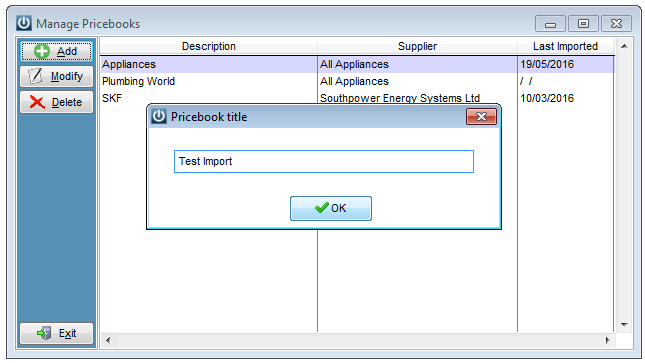
If not select Add and give the Pricebook a name.
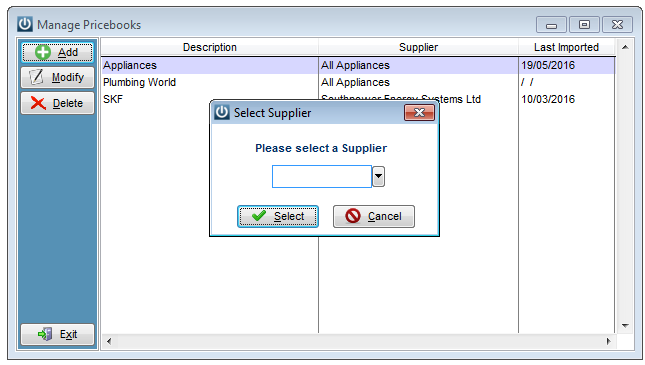
Select the Supplier
Do the Selling prices include GST?
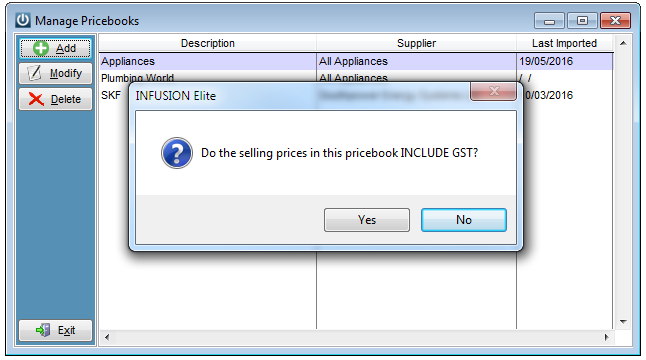
This will now save a Pricebook.
Create an Import Routine
Go to Admin / Manage Import Routines
Create a new routine from the first dropdown box (or if updating an existing Pricebook select from here) check the Import Routine matches the order of the fields on the CSV.
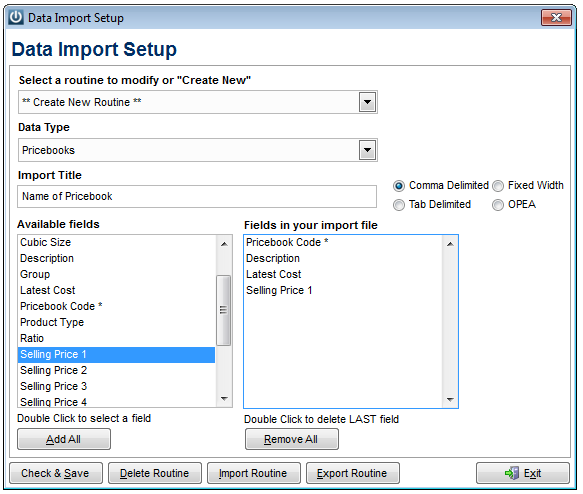
Double check the Fields are in the same order as the import file and Check and Save.
Before importing your file check Saving a CSV File With the Correct Data Format
Importing Data
Admin / Import Data
Select the Import Title of the Pricebook from the dropdown
Source File select your saved CSV file.
Select the Pricebook to Import into.
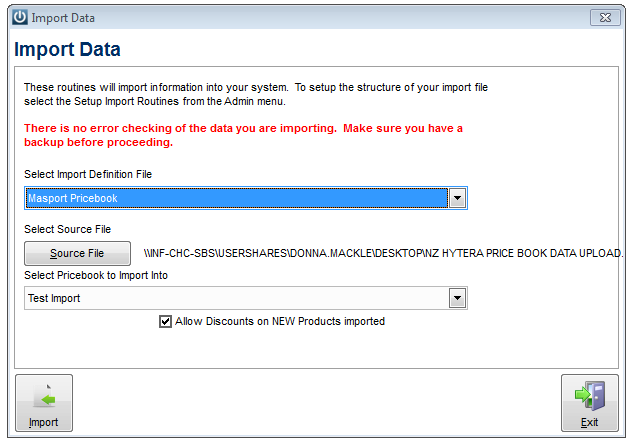
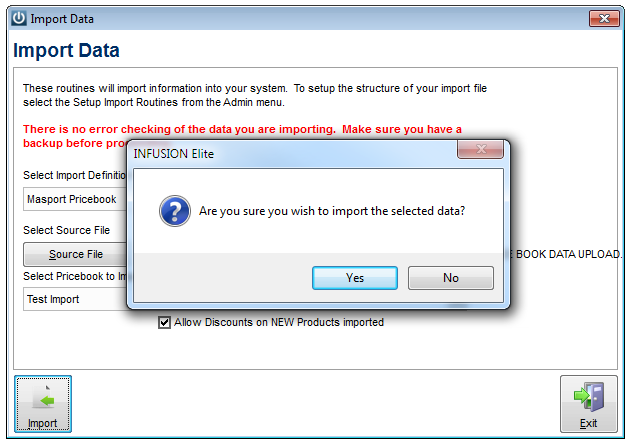
Once the Import is completed a prompt will ask if you want to delete the Source file. It is recommended that you answer No in case of any problems.
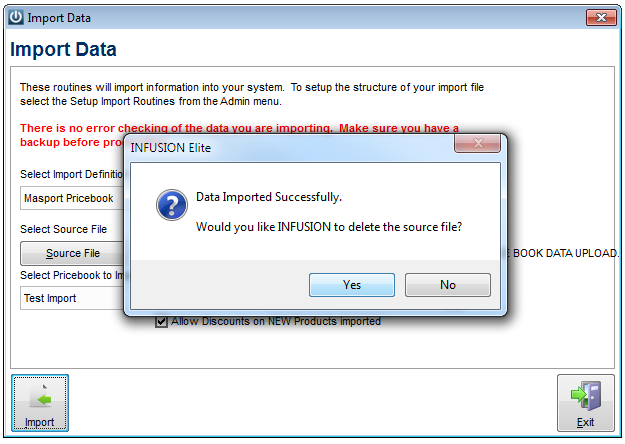
Once completed go back and check the Pricebook, it will now show as updated and will be available for use.
See Managing the Imported Pricebook for how to prepare the Pricebook Products for use within the Software.
Comments
0 comments
Please sign in to leave a comment.