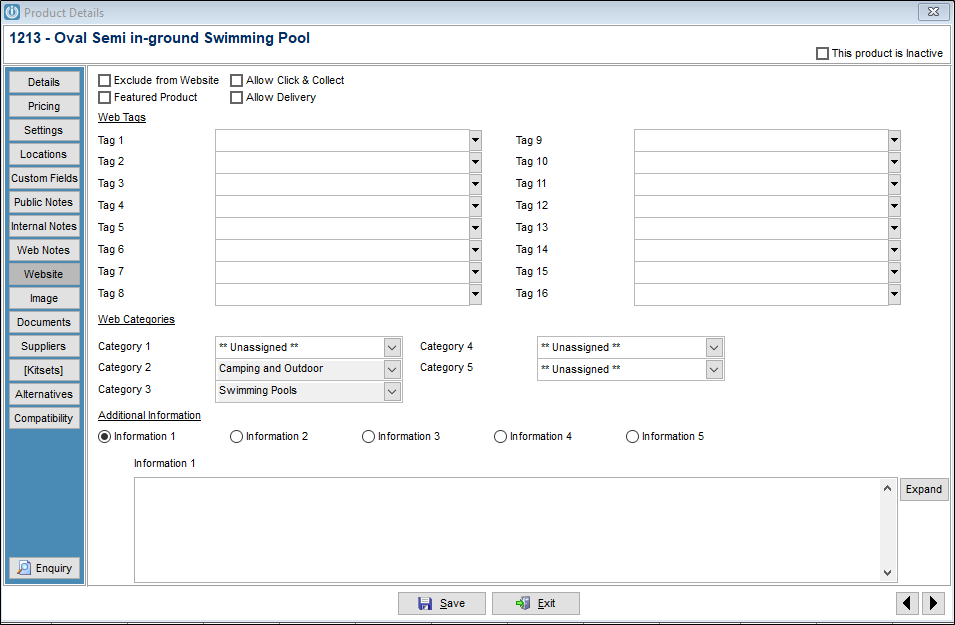
A new tab has been added to the Modify Products screen called Website to allow for the easy exporting of Infusion to your website.
This tab has 16 configurable Web Tag fields, 5 configurable Web Category Tag fields and 5 configurable Additional Information note fields. The Exclude from Website flag is moved to this tab with new flags: Featured Product, Allow Click & Collect and Allow Delivery added.
Setup
The Web Tags can be named and set as either a lookup list or a free text field in Admin / Settings / Products / Manage Products and under the Website tab.
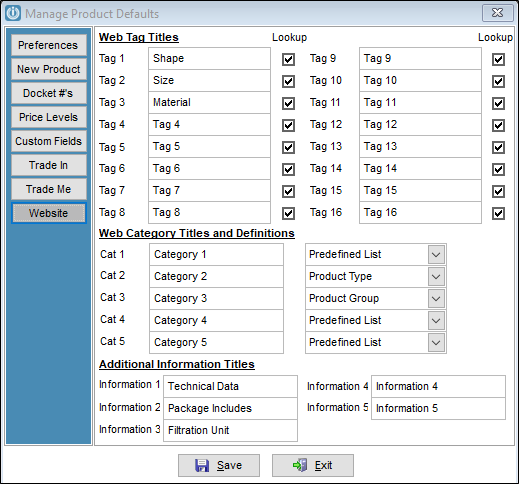
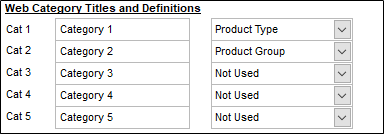
The Web Categories can be given a title and definition in Manage Product Defaults. Categories can be set to either: Predefined list; Product Type; Product Group; or Product Sub Group; or Not Used.
The Additional Information fields can be given a title in the Manage Product Defaults. If a title is left blank the field is not available from the Modify Product screen.
A Web Tag lookup list item can either be set within a product by clicking the arrow on the Web Tag and selecting “New”, or within Admin / Settings / Products / Manage Web Tag Lists.
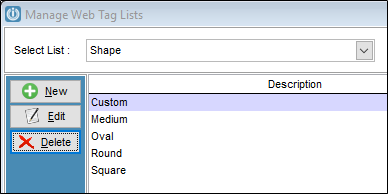
A Web Category Predefined List item can be created in Admin / Settings / Products / Manage Web Category Lists. Only Categories defined as “Predefined List” will be available to add List Items to.
The Product Screen
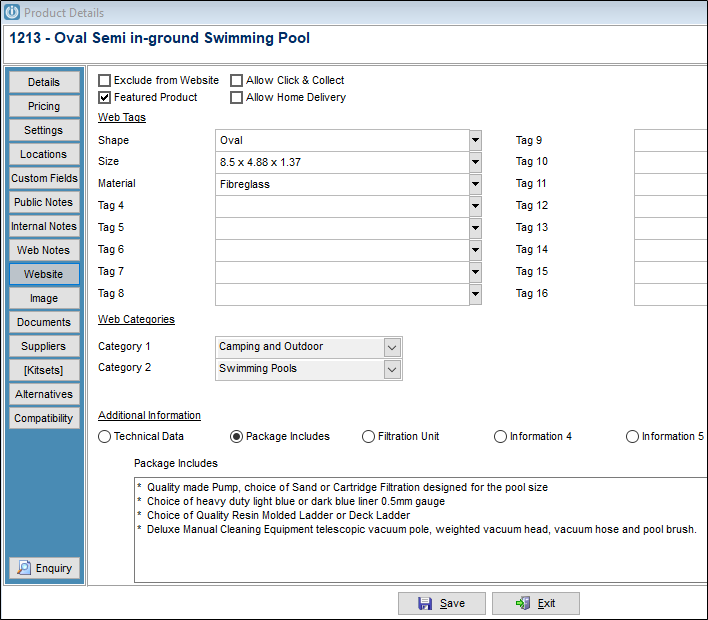
The entry onto the Website tab is by manual entry once the setup has been done. Where the Tags have been created, the drop down screens are now available. Selecting the Additional Information, selectors will open these Memo Fields.
Duplicating Products
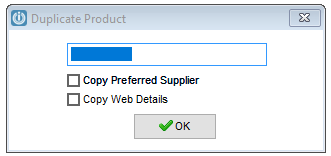
When Duplicating a Product there is the option to Copy Web Details which will bring all the Web Details and settings through from the originating product.
Web Notes
There is also a Web Notes tab added to separate the information for the product from the Public Notes.
Note: Because these are additional to the Products table, they do not get exported from the Products / Utilities / Export Products process. We can offer a limited option to Import Web Tags and Categories. Contact Support or your Partner
To copy Public product notes to the Webnotes field, run:
UPDATE prodweb FROM products SET prodweb.webnotes=products.notes WHERE prodweb.CODE=products.CODE
BUT this will:
- Overwrite any current webnotes.
- Leave the Public notes there on the products.
Comments
0 comments
Please sign in to leave a comment.