Adding in the Supplier Product Code allows the software to convert the code used by the Supplier or Suppliers to match that used in the system.
Several Suppliers can be used for one Product Code. By selecting one as the Preferred Supplier, this is then used in all options where the Preferred Supplier is required.
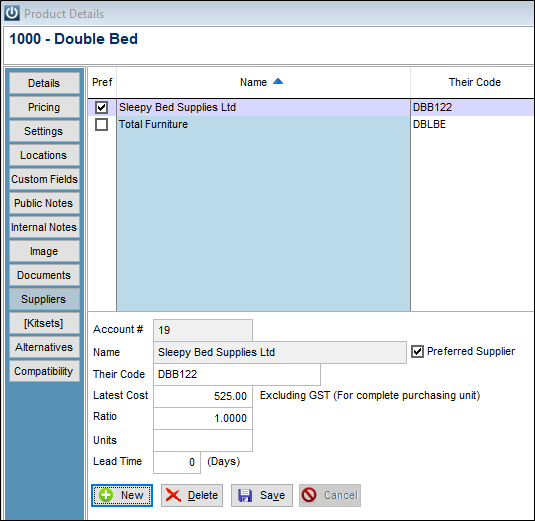
When making any changes in this screen, remember to Save on the Supplier Details screen and again then exiting the Product.
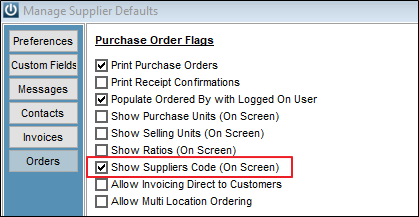
When entering the Purchase order there is a default under Admin / Defaults / Manage Supplier Defaults - Orders
To tick to show the Suppliers Code when entering the Purchase Orders.
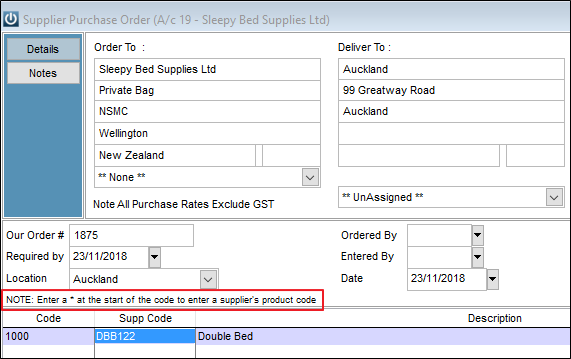
On the Order screen there is also a note that reads "NOTE: Enter a * at the start of the code to enter a supplier's product code"
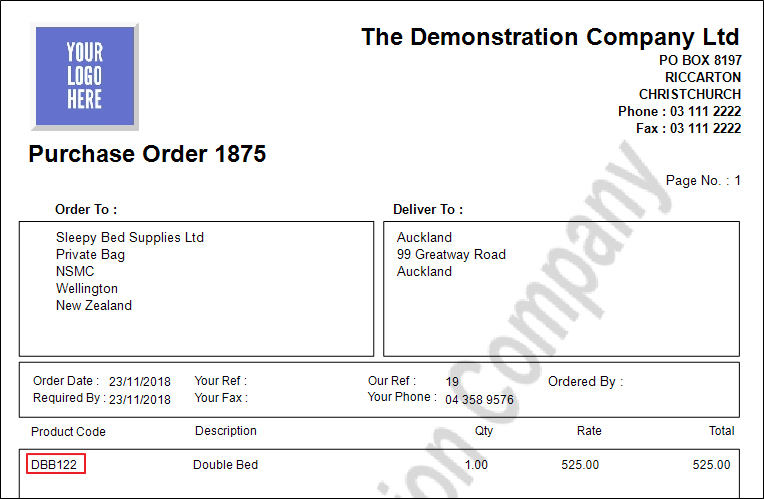
When the Purchase Order is printed it shows the Supplier's Number.
To enter Supplier's Products Codes there is a Utility that will import Product Codes, Supplier Account, Supplier Product Code, and Latest Cost.
If the Admin / Import Data option is used, the Supplier Product Code will appear on the Backform, but not on the Product Code until the Product is opened and Saved.
Comments
0 comments
Please sign in to leave a comment.