I have not set up products up correctly for Serial Tracking. How can I go back and do this?
Solution
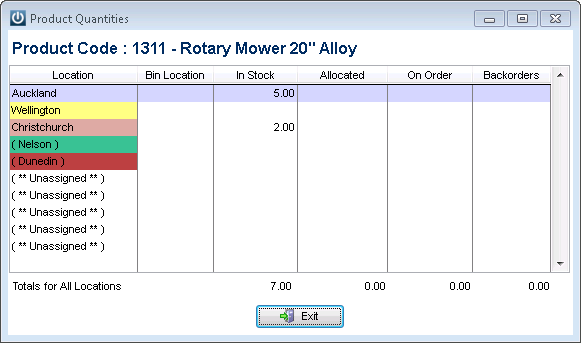
This can only be done when the Instock, Allocated, On Order and Backorder columns are all zero.
The Location option is a good way to check this if you are using more than one location.
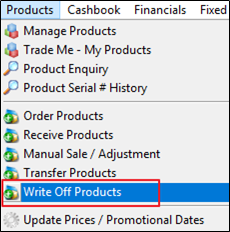
Go to Products / Write Off Products
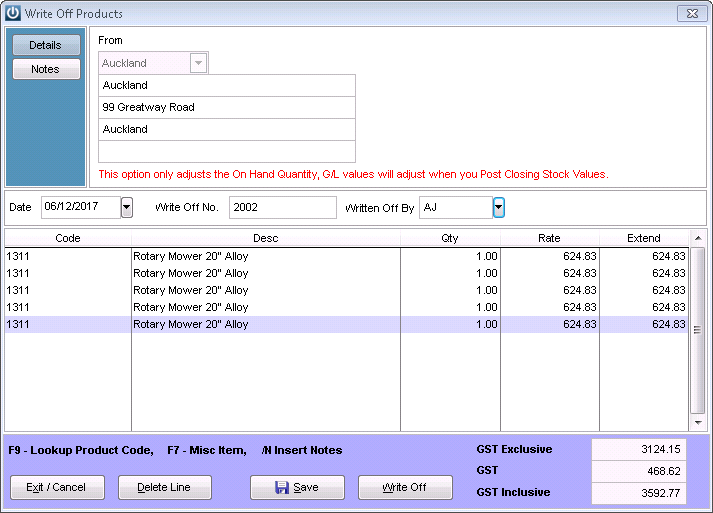
Open the Product Write Off Screen for the appropriate location and enter the Product to be written off.
In the example below the serial tracking is not set up correctly for the product so each serial number has been entered to remove it from stock.
If there is more than one Location, repeat to remove stock from each location.
Open the Product and select Settings and you are able to change the ticks for Serial Tracking.
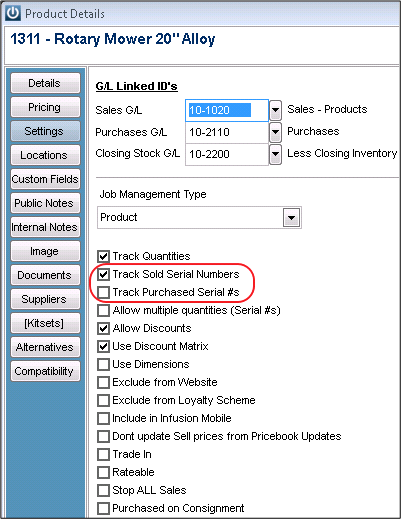
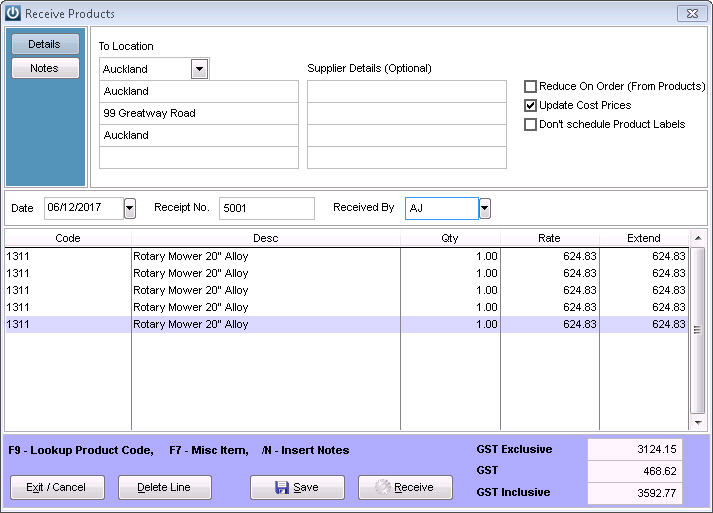
Once this is complete save the Product and go to Products / Receive Products. Using the same location and date, enter in the receipt of Products back into Stock.
If you are removing the serial tracking the products will be entered on one line.
If you are adding serial tracking then the products will be entered one line at a time.
Comments
0 comments
Please sign in to leave a comment.