One of our Suppliers is now sending us products on Consignment. Is there a way to set these up in Infusion so this is not included in our Product Valuation reports?
Solution
For the following instructions to work the Product Code needs to be set up before the Receipt of the items. Do not mix Consignment Stock and Purchased Stock, create a new Product Code.
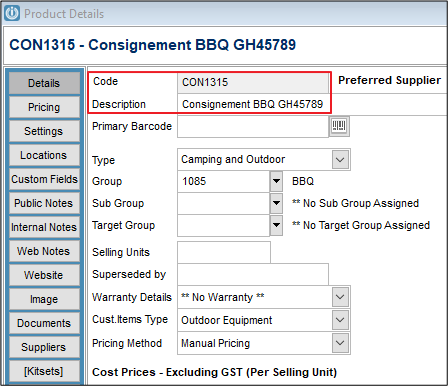
It is recommended that in the Description of the Product, it is clearly marked as being a Consignment item, (this can be changed when the item is sold).
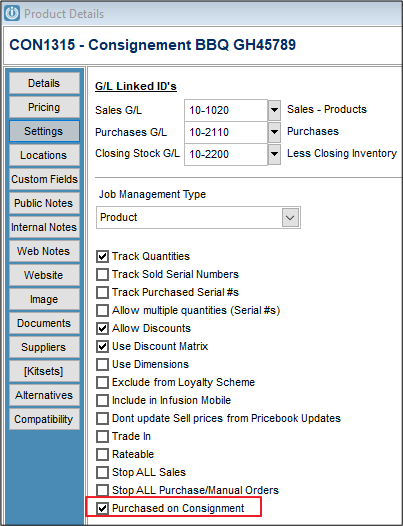
On the settings page tick the option at the bottom to indicate the item is on Consignment.
To receive the item into your inventory, go to Products / Receive Products, select the correct location.
Enter the Supplier Details, Product Code and quantity, the rate will be the usual cost of the product.
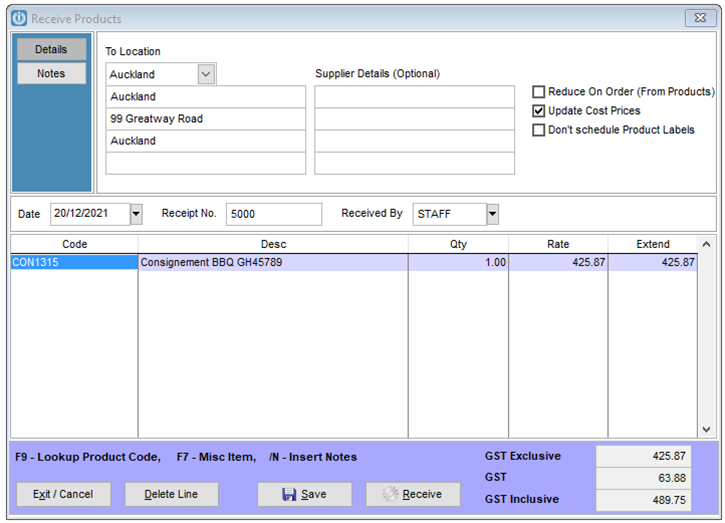
Once Received the On Hand Quantity is recorded Correctly.
To sell Consignment Stock
Sell as usual - change the description to remove the word Consignment.
To enter the Supplier's Invoice
Enter this as Supplier No Products straight to the correct GL Code. This will prevent having another Product being entered into the system unnecessarily.
Reports
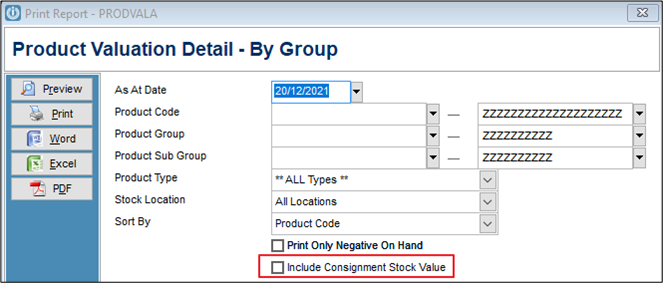
When running Product Valuation Reports they have an option to Include Consignment Stock
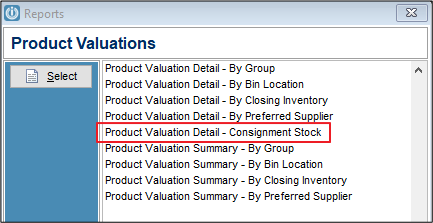
There is also a separate report to show only Consignment Stock
Comments
0 comments
Please sign in to leave a comment.