Trade Me – My Products
Infusion allows users to export Products to a Trade Me account.
**Export to Trade Me has changed, you will have to manually add 3 columns after July 2017 if using these instructions** - See below in File Instructions
Setup
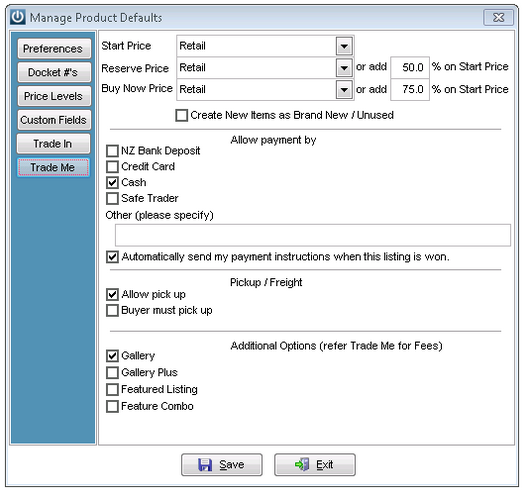
From the Admin / Defaults / Manage Product Defaults > Trade Me menu users have the option to set up defaults for each Product export.
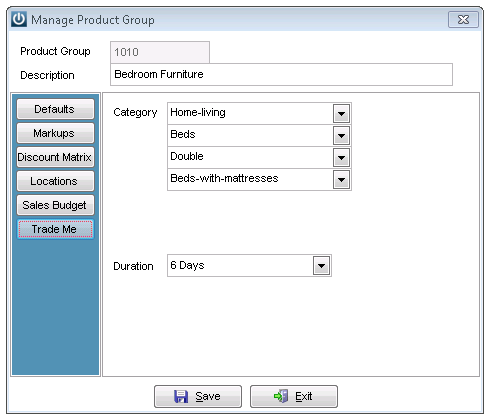
From the Admin / Settings / Manage Product Groups menu choose the Group then the Trade Me option to set up the default Categories the item will display in as well as the duration of the sale.
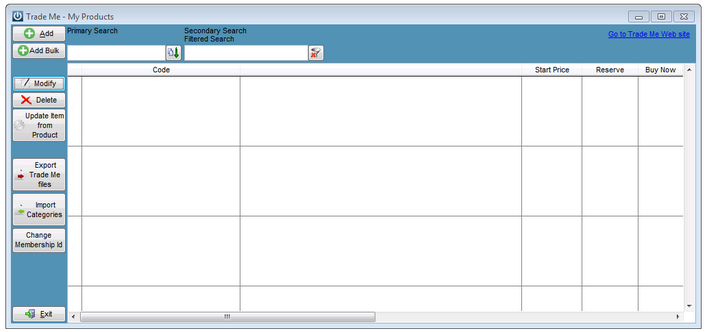
Trade Me - My Products
The items being set up for export can be managed from the Products / Trade Me – My Products menu. When first opened it will display as a blank grid.
Selecting Add displays the Product Look Up screen allowing an item to be added to the grid
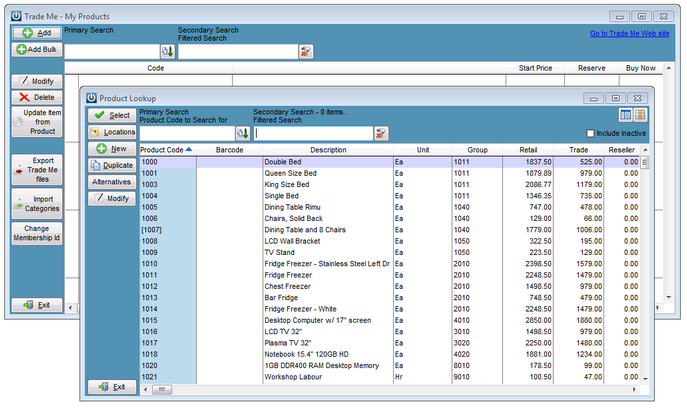
Select a product to appear in the grid.
Add Bulk will allow the addition of a range of items
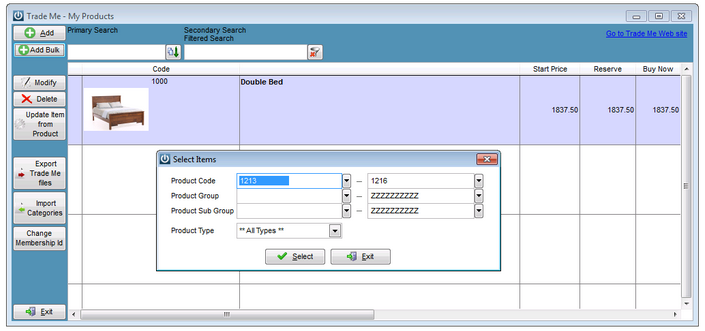
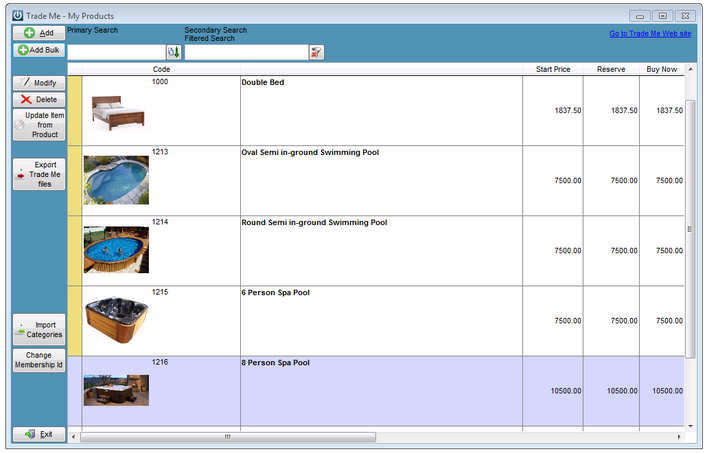
The grid now contains all selected Products
Selecting Modify will open the My Product window to allow the details that are required for Trade Me to be set up. If defaults have been set up they will be used, but can be overwritten.
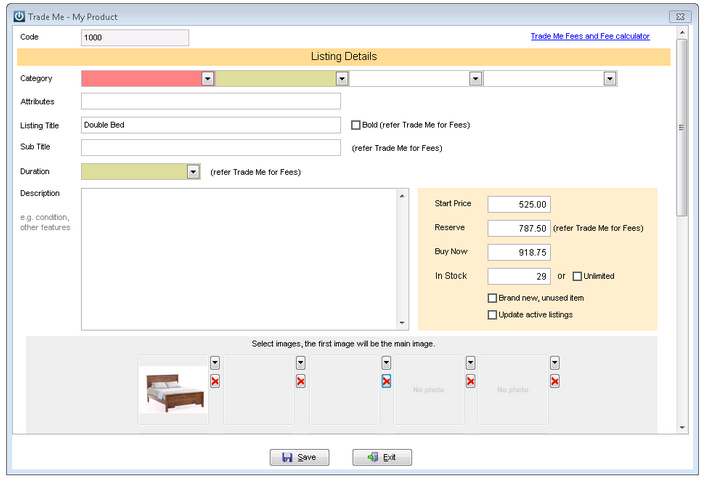
Public Notes from the Product will populate the Description field. Additional images of the Product can be added in the Select Images area. Images should be at least 1024 x 768.
From the grid, selecting Delete will remove the selected Product.
Selecting Update Item from Product will override any settings in the Trade Me – My Products screen updating it with values from the Product within Infusion.
Selecting Import Categories this will import the Trade Me Category listing options updating them if there are new ones.
The Change Membership ID option allows entry of your Trade Me account number.
When selecting the Export Trade Me files option users will receive a warning that will inform them that the existing images and CSV’s from previous exports are being removed.
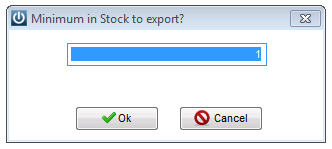
They will be asked for a Minimum Quantity in Stock figure. Items under this value won't be exported.
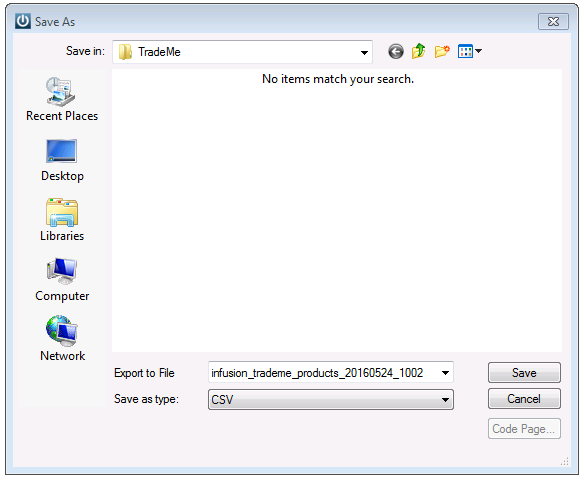
A Location for where the file is to be saved to is displayed. The default name of the file includes the date and time in reverse.
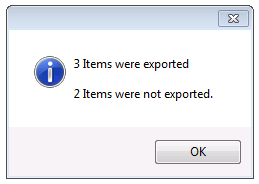
A Summary screen shows how many items were exported and how many weren't.
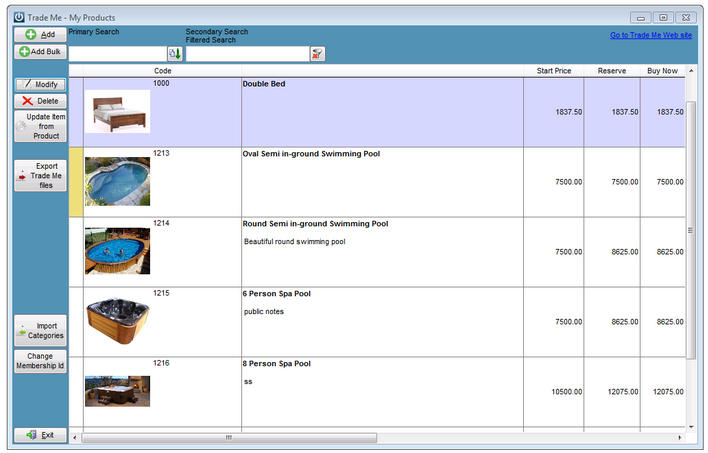
Looking at the grid after the export has been run, the yellow strip at the left of product 1213 shows that this Product has not been exported. Products with a white strip have been exported once.
Opening Products that were not exported will show what information is missing.
File Instructions
Since July 2017 the following changes will need to be made to the .csv file that is exported from Infusion:
1. Add 3 column headers to the right of the exported data. These must be labelled as:
- Column AZ: brand
- Column BA: manufacturer_code
- Column BB: barcode_gtin
2. In Column AJ you will need to change the header from payment_safe_trader to payment_afterpay
3. Save the .csv file again.
Trade Me
To load the items onto Trade Me selecting the Go to Trade Me Website link at the top right of the Trade Me - My Products screen. This will open the home page. Log in and navigate to My Trade Me / Create a New Product.

Select Import Photos and Products
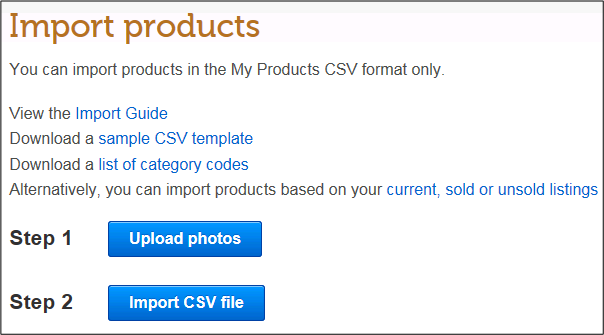
Select Upload Photos, navigate to the location of the Trade Me folder and select all of the photos. Select Import CSV file and browse to the CSV file and upload.
Images must be 500px on the longest side.
The Import will create an Error CSV if there is a problem, open to check.
Navigate back to Create a New Product to Edit as necessary.
Comments
0 comments
Please sign in to leave a comment.