Set Up
To use the "Trade In" feature set up the defaults found in Admin / Defaults / Manage Products - Trade In.
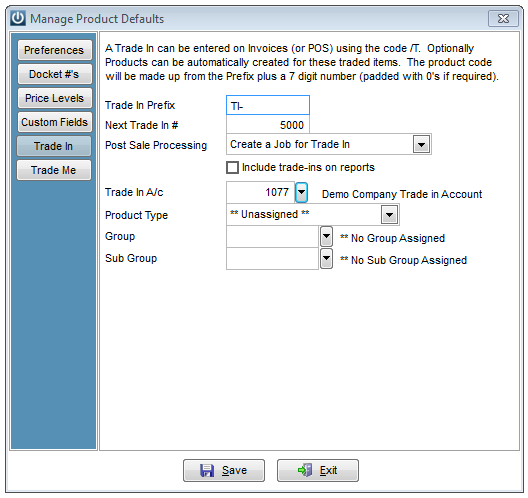
The Product Code created when processing a Trade In item is set from the "Trade In Prefix" and "Next Trade In #" fields.
The "Post Sale Processing" option allows a default option for the Trade In item to be set. Options are: Do Not Create a Product, Create a Product for Sale and Create a Job for Refurbishment. This can be changed at the time of processing the Trade In on an Invoice.
The "Trade In Account" is a Customer account used when a Refurbishment Job is created - it is recommended that an internal account be used.
The Product Type, Group and Sub Group options allow default settings for the Trade In item to set. These can be changed at the time of processing the Trade In.
Purchasing a Trade In
When a Customer Invoice is created and the /T activates the Trade In function, the screen below appears. In the following example we are going to create a Job for Refurbishment
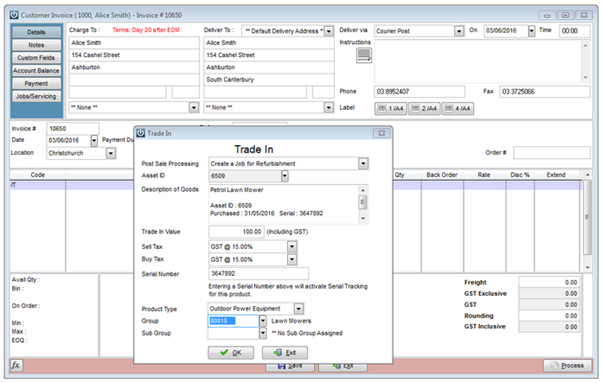
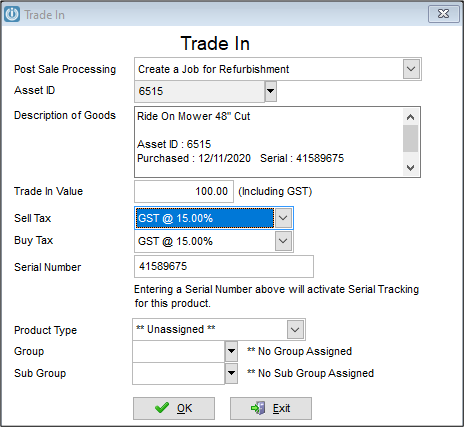
Using the Asset ID drop down will show all of the Customer Items that the Customer has recorded in your business. Select the relevant item and the details will populate. If this has not been seen before, manually add the description and serial number.
Enter the remaining details on the form as required.
Complete the transaction. A pop up asking if you want to print the job card will appear.
The Service Workshop
The Job, when opened has a Status of Trade In. This is greyed out so cannot be changed. The Trade In product is on the first line as both A = Authorised and B = Billed. There is no Invoice Now button. Instead an "Add to Stock" option is available.
There is no Title, so please add this.
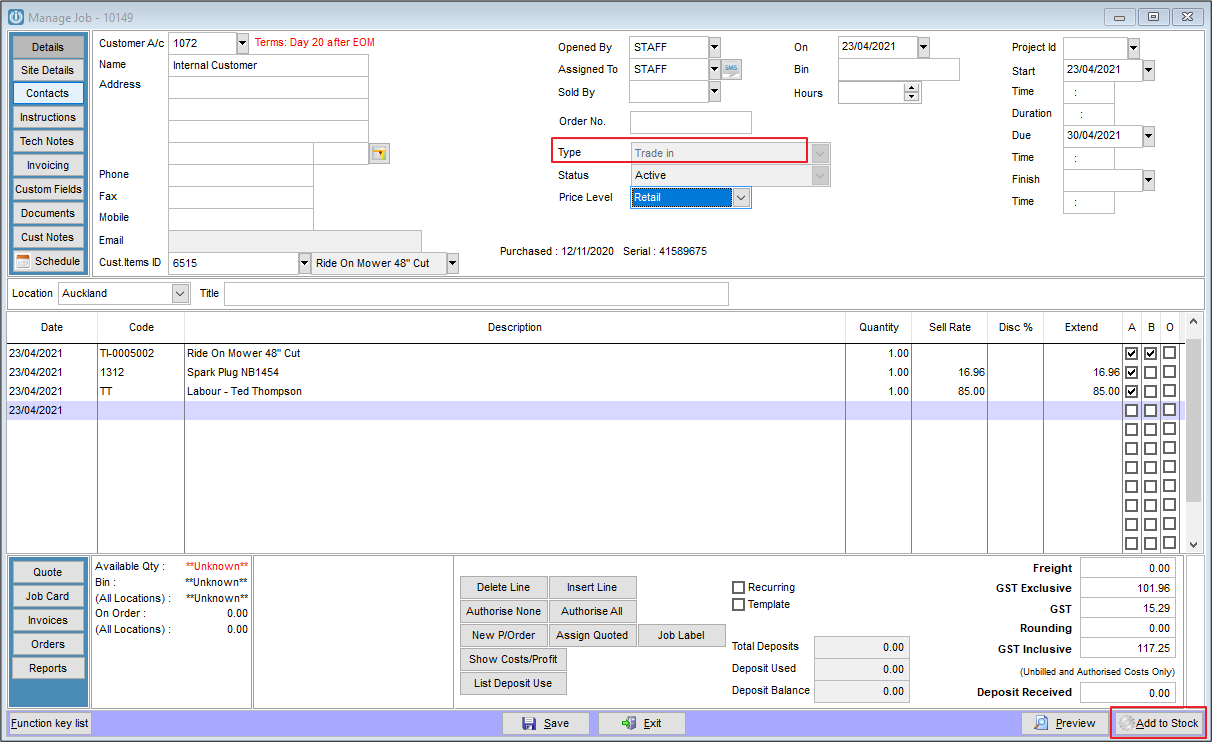
Add Products as necessary.
After the work has been completed on the Trade In and it is now ready to be Added to Stock. Selecting the "Add to Stock" will display a Product Details screen for the Trade In item.
The Product Details
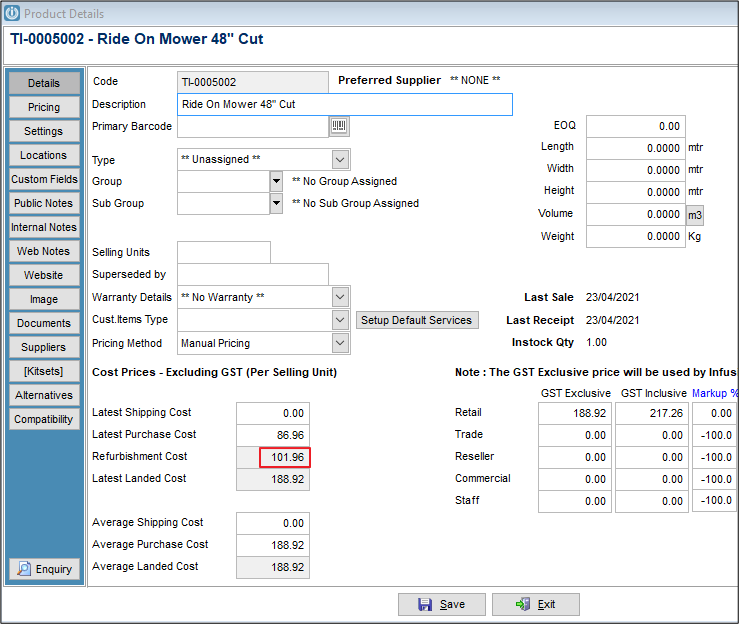
The Latest Landed Cost is the combined total of the Purchase and Refurbishment Costs.
The Retail price will be the Landed Cost unless changed.
Set up the remainder of the details on the item as necessary.
Comments
0 comments
Please sign in to leave a comment.