Can I set the correct quantity of labels to print when my stock arrives? I always have extra labels or not enough.
Solution
By either setting a flag in Admin / Defaults / Manage Product Defaults - Print Labels when Receiving Products or ticking the box at the bottom of the Purchase Order or Supplier Invoice you can print out barcode labels.

OPTION 1
To set a permanent number of labels per Product.
The number of those can be set from the Product itself, in the order right click on the Product to open and go to the Settings Tab.
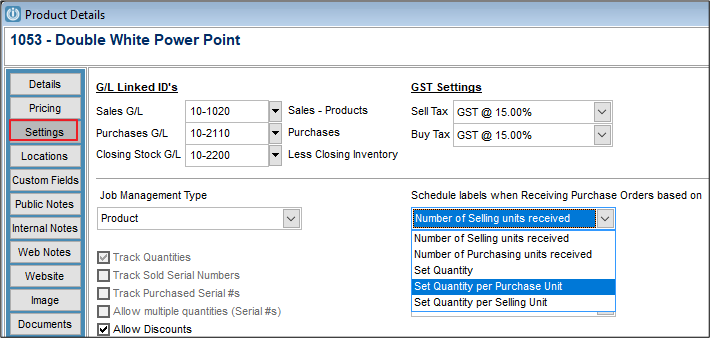
Five different options for labels can be selected
- Number of Selling units received
- Number of Purchasing units received
- Set Quantity
- Set Quantity per Purchase Unit
- Set Quantity per Selling Unit.
or
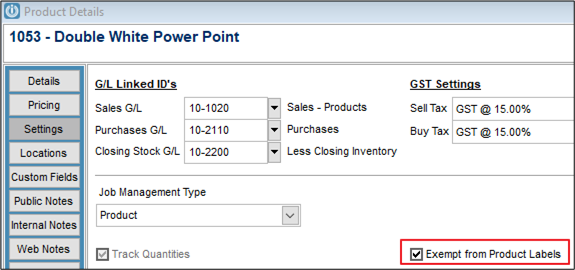
For those items that do not need a Product Label printed, tick Exempt from Product Labels and no labels will be printed.
OPTION 2:
To vary the number of labels that need to be printed each time the products are receipted in.
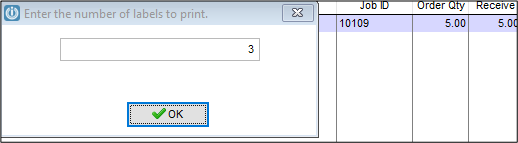
In the Receive column press F11 and the box below appears. Enter the number of labels per products that are required.
Job Management Orders
This will give the option to Print the Job Labels, these will contain the Job Number along with the Product Code.

With both tick boxes, once the Process button is pressed the labels will be printed.
Job Labels use label layout Barcode7
Product Labels use the Default Label Layout set in Admin / Defaults / Product Defaults
Comments
0 comments
Please sign in to leave a comment.