My new barcode scanner is not scanning my labels as I would like it to, how do I fix this?
Option 1
If all of the POS defaults are set up and the barcode scanner is still not reading it will need to be configured.
You may need to "Train" your new barcode scanner.
Scanners can generally be trained to hit the ENTER or the TAB key after scanning which can speed up entry on POS screens.
To train your barcode scanner, see the manufacturer's website or the manual.
Option 2
A standard Code 39 barcode is prefixed and suffixed with an “@” sign.
If the field is not wide enough, the barcode won’t print with the start and finish codes, and the barcode may not scan.
It can be difficult to tell – the @ sign in Code 39 should look like this:

Option 3
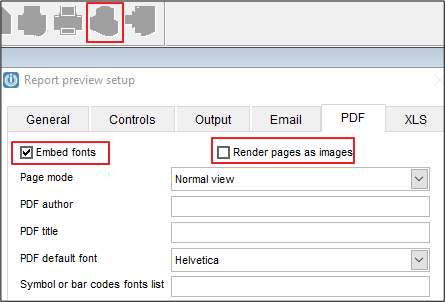
If the barcode is printing fuzzy, adjust the PDF settings on the Print Preview (using the Configure option and selecting PFDF) to Embed Fonts and untick Render Page as Image
Comments
0 comments
Please sign in to leave a comment.