The Order Products option is used mainly in Fundamentals, where the Purchase Orders option is not included.
To Create the Order
Products / Order Products and select the location and double click to open.
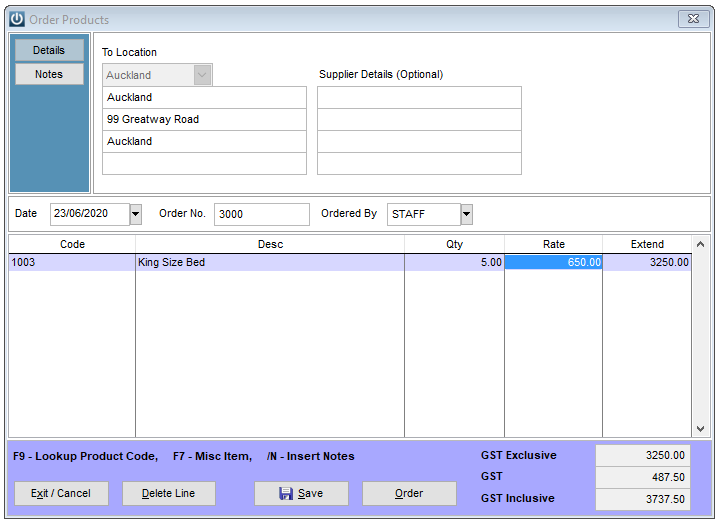
Enter the products as necessary and order.
On the Product Code, the Order Qty will show with the required number on Order.
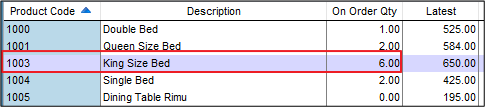
To receive
Products / Receive Products, and select the location and double click to open.
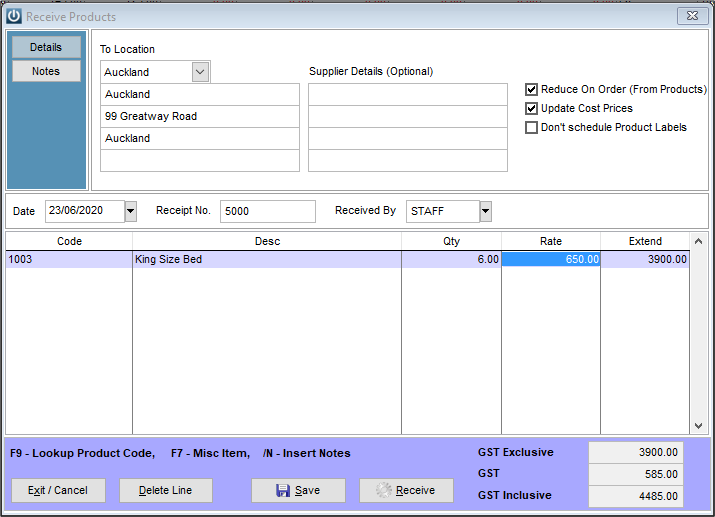
Tick Reduce On Order (From Products) and enter the Product Code and Quantity and the correct Rate. Receive.
Troubleshooting
A staff member used the Order Products screen to place an order. Where is this order recorded? We can see it if we run the Products On Order report and it shows as On Order for the Product but there has not been an order created. How do we process this order?
Solution
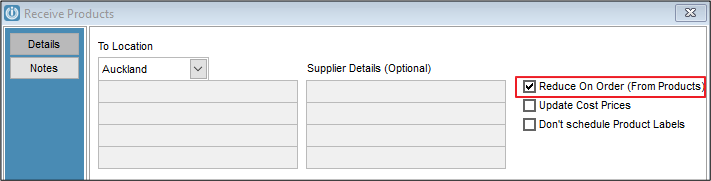
Open Products / Receive Orders and enter all products that are on the Products On Order Report. Ensure that you have only ticked the Reduce On Order (From Products) Radio button.
Enter products and then Receive.
This will reduce the on order quantities to zero for the Products received. It will also increase the on hand quantity of the Products so this should be reviewed to see if these figures are accurate.
Comments
0 comments
Please sign in to leave a comment.