There are a number of ways to send a document by email from within Infusion.
Addresses for recipients must first be setup within the Supplier or Customer for each document type. See instructions here
Directly on creation of the document.
When you process an Invoice or Purchase order the document is sent to the Queued Emails to be sent from Admin / Queued Emails.
From the Manage Invoices Screen
At the bottom of these screens is the option to Email one or all PENDING invoice/s displayed.
This option is mainly used when a user wants to email invoice copies to a customer before they use the Post 1 or Post ALL button, as this button does not generate printed or emailed copies.
By Right Clicking on the Invoice or Purchase Order from the Manage Screen there are 3 email options.
Please select see detailed instructions by selecting this link Email Via Right Click
Email (Queue) Waits in the Email Queue
Email Now (via Queue) Bypasses the Email Queue and sends directly.
NB Attachment is not saved and won’t be able to be viewed later even if Keep Attachments is Ticked.
Email (local Email Application) Opens your local Email programme -
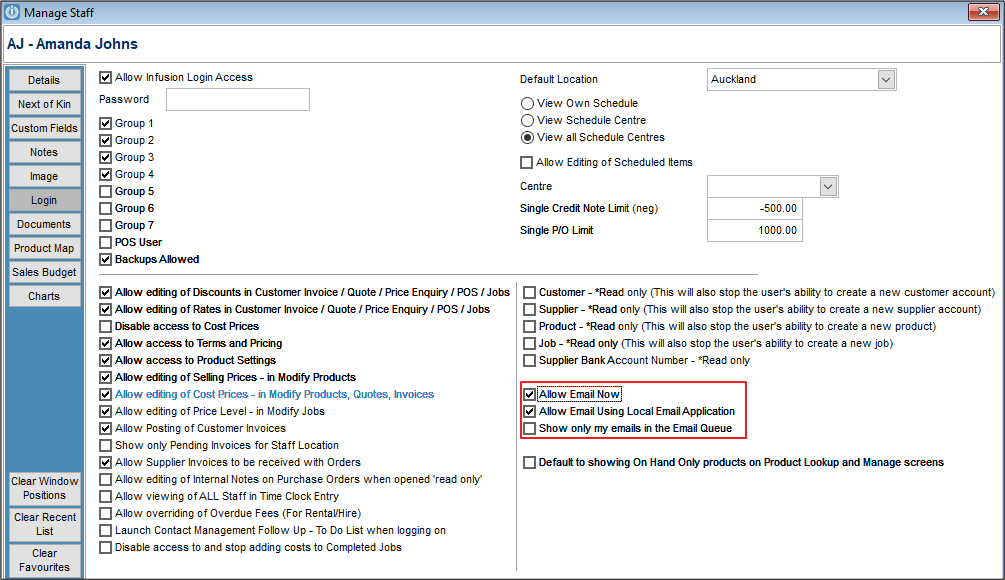
Email Now (via Queue) and Email Via Local Applications are controlled per Staff Member, under the Login tab.
From the Print/Preview Screen
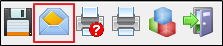
Click the envelope in the top menu of the screen. See Sending an Email from the Previewer Screen - Error to resolve any errors that were occurring.
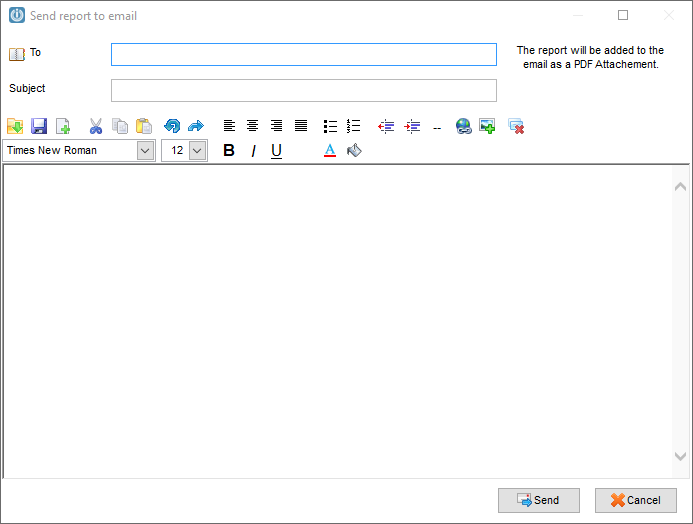
This will open your Default Email Program and the PDF is saved as an attachment.
Comments
0 comments
Please sign in to leave a comment.