How do we add a Gmail Account in the Set up Email Defaults in Infusion?
Solution
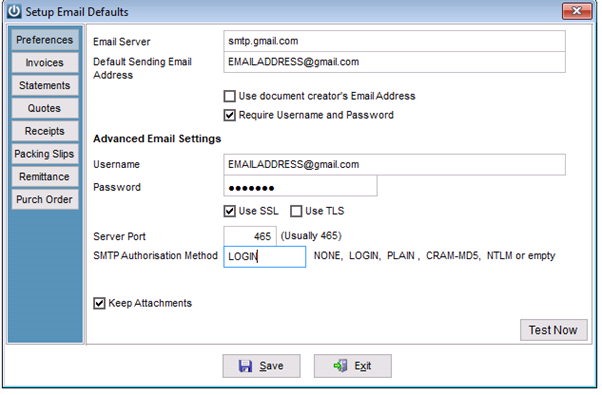
Email Defaults are set up under Admin / Manage Email Defaults
Email Server: smtp.gmail.com
Default Sending Email Address: the Gmail address you are setting up “(Google’s security settings prevent Gmail from sending from an alias)”
Make sure Required Username and Password is ticked.
Under Advanced Email Settings:
Username: your Gmail username
Password: your Gmail password
Tick Use SSL
Server Port: 465
SMTP Authorisation Method: LOGIN
The example is entered below
It may be necessary to go to the following link to allow Infusion access to Gmail.
https://support.google.com/accounts/answer/6010255?hl=en
To Set up Email Alias's in Gmail to use the document creators email address.
- On your computer, go to Gmail sign into the account used in Infusion email defaults
- At the top right, click Settings Settings.
- Select the Accounts and import or Accounts tab.
- In the "Send mail as," click Add another email address.
- In the window that opens, enter the name you want recipients to view. (This does not get used in Infusion)
- Enter the email address alias (the document creators email address).
- Confirm that "Treat as an alias" is marked, and click Next step.
- It will ask you to confirm a code Gmail emailed to the email address used in step 6.
- Repeat for each staff member email address
It may be necessary to change the Use Document Creators email address, Require Username flags or try different SMTP Authorisation Methods if necessary.
Sending from Gmail March 2020 requires the latest Chilkat ActiveX Installer 32 bit version.
Comments
0 comments
Please sign in to leave a comment.