Infusion uses two main forms of searching, Primary and Filtered. You can set your system up under Admin / Defaults / Manage System Default - Search Options, for Customers, Suppliers, Products, PriceBooks, Jobs (Completed Only), Staff, Customer Items, General Ledger and Rental Hire.
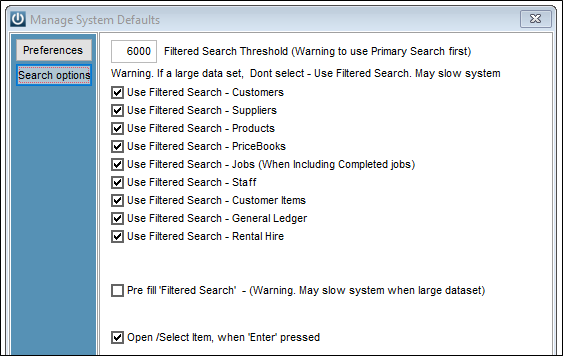
Selecting Pre Fill "Filtered Search" will enter in the last product searched for when using F9 on an Invoice, Quote or Job.
NB you cannot search on all columns. Please see the article on Searchplus to see which columns can be searched.
Primary Searching
Searches from the start of the highlighted column. If you know exactly what you are searching for use this.
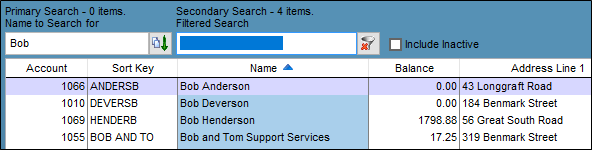
In the following example the Name column is highlighted. Typing in Bob moves the cursor to the first Name record starting with this text. Tabbing to the Filtered Search field after this will reduce the list displaying to just those starting with Bob ie:
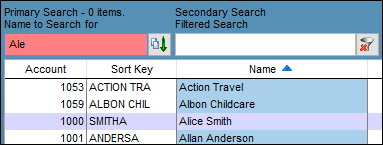
If the text entered in the Primary search appears in red, then no match is found.
A Filtered Search can then be done on the list to narrow it down further eg entering Street will display records starting with Bob in the Name field and Street any of the fields the Filtered Search looks at.

Secondary Search
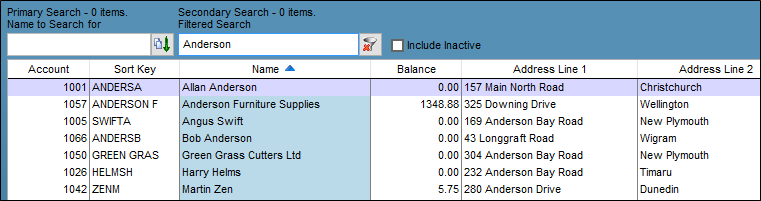
Will look at all columns within your searchplus fields. While this is a much broader search, it is slower because it is looking at more data.
In the following example typing Anderson in the Filtered Search field has given rise to a number of records in the Customer list.
Wildcard Search
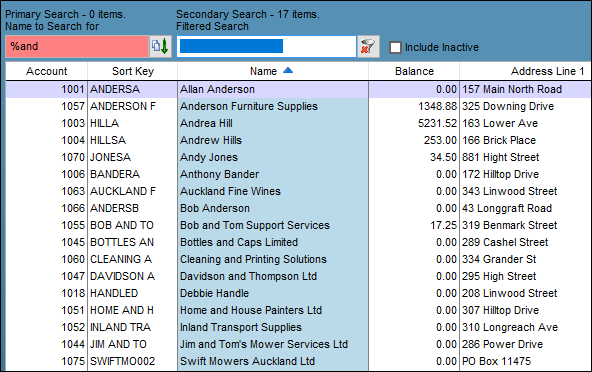
Entering a "%" followed by a search criterion into the Primary Search Field will activate a wildcard search which only includes records containing the text anywhere within the highlighted column. In this example “%and” filters to leave only the results containing “and” anywhere within the field. You must tab out of the Primary Search field to activate the wildcard search.
Manage Invoice, Quotes, Purchase Order Screens
These screens use a different form of searching.
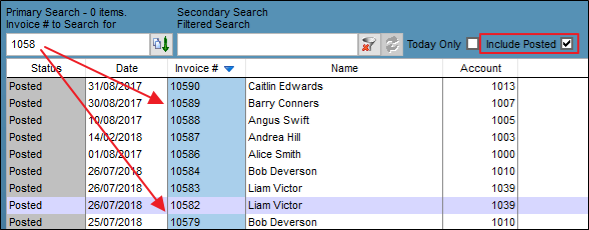
If searching on the standard Manages screens you will automatically use the Filtered search UNTIL you tick the boxes like Include Posted. At this point the Search will automatically put you into the Primary Search box and if you do not choose a Column to search on or try to search in the Secondary Search you will get
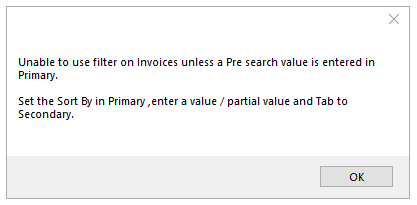
But as soon as you set your search parameters you are back to searching and then can tab into the Filtered screen if you need too.
Like all Primary Searches we can start looking for Invoice numbers beginning with 1058 and tab to search for more in the Secondary Search if we wished.
Grid Column Searching
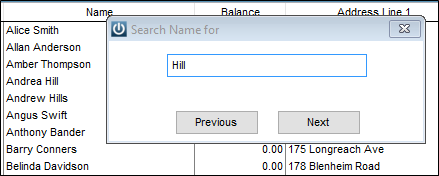
Introduced in V8.40 you are now able to right click on the column header and search directly into the field, this is available on all the Customer, Invoices/Quotes, Suppliers, Purchase Orders, Financials, Fixed Assets, Jobs, Customer Items, Staff backforms, plus the Invoice and Job screens.
Comments
0 comments
Please sign in to leave a comment.