Users may find that text appears slightly blurry in the Infusion Hosted Server.
This is usually a result of the RDP connection picking up that the internet connection is slow, and adopting lower-quality display settings.
Check that the Internet connection doesn’t have any speed issues. Go to www.speedtest.net and run, we should be seeing a Ping of under 100ms, a Download speed of at least 10mbps and an upload speed of at least 5mbps. Provided the internet connection is at least this fast, we can manually enable higher quality RDP settings.
To do this:
- Right click on the RDP icon and select Edit
- Go to the Experience tab
- In the drop-down menu, make sure the LAN (10Mbps or higher) option is checked.
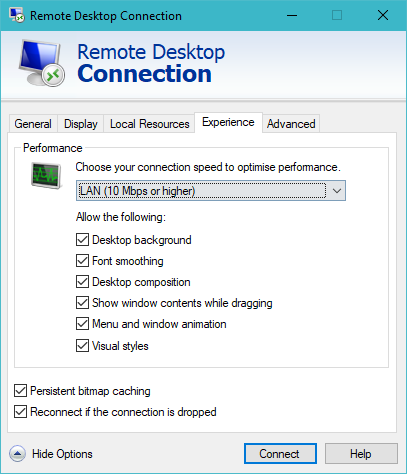
- Ensure all of the above boxes are selected.
- Go back to the General tab and click Save
- Exit
- Relaunch the RDP connection to enable these new, higher quality display settings
Comments
0 comments
Please sign in to leave a comment.