We have added Documents to a Customer's Account but other users are getting a "File Not Found – Please Check File Exists" message. What has happened?
Solution
Infusion has the option to create shortcut links to documents so they can be accessed while inside the software which can be useful for organising and storing documents relating to Infusion modules: Customers, Suppliers, Products, Fixed Assets, Jobs, Customer Items, Rental / Hire, or Staff.
However, for the document links to be viewed by other Infusion users on your network, the item must first be saved within the Infusion database. If this link is created before this step is completed, when a colleague or other Infusion user on your network tries to click into it, it will say "File Not Found – Please Check File Exists".
- In the relevant Module, select the Documents tab
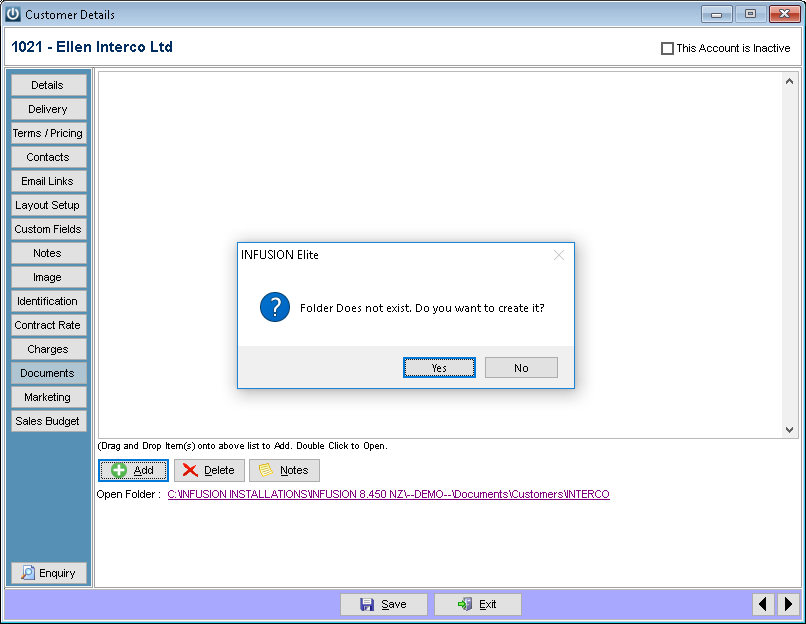
- Click the link at the bottom of the screen that says Open Folder
If a folder has not yet been created, a pop up will appear asking whether you would like to create this folder
Select YES
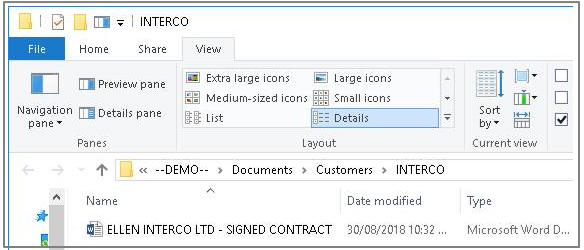
- This will open a folder that has been created inside your Infusion data which you can now upload documents to.
- Save a copy of the required document inside this folder
- Once saved, go back to the Customer Details Screen and click the ADD button.
- This will open the newly created folder for the documents to be added to.
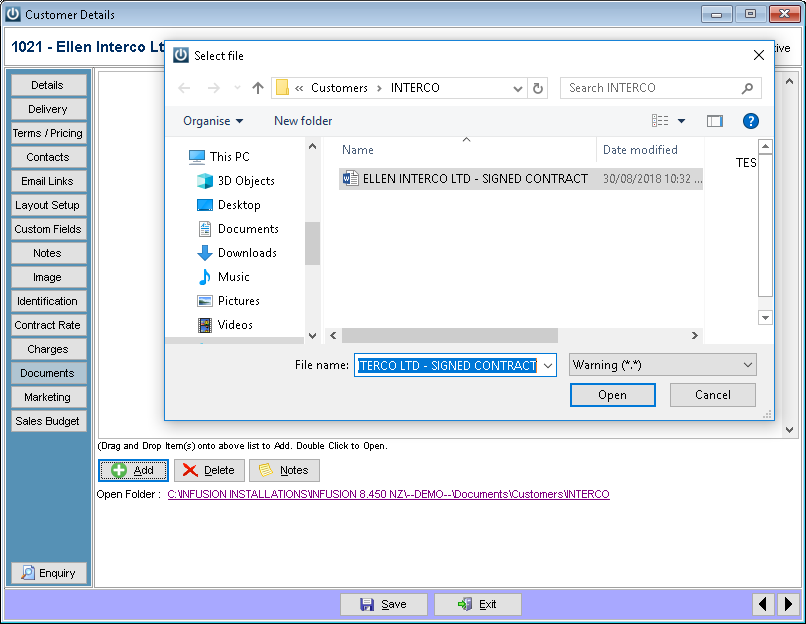
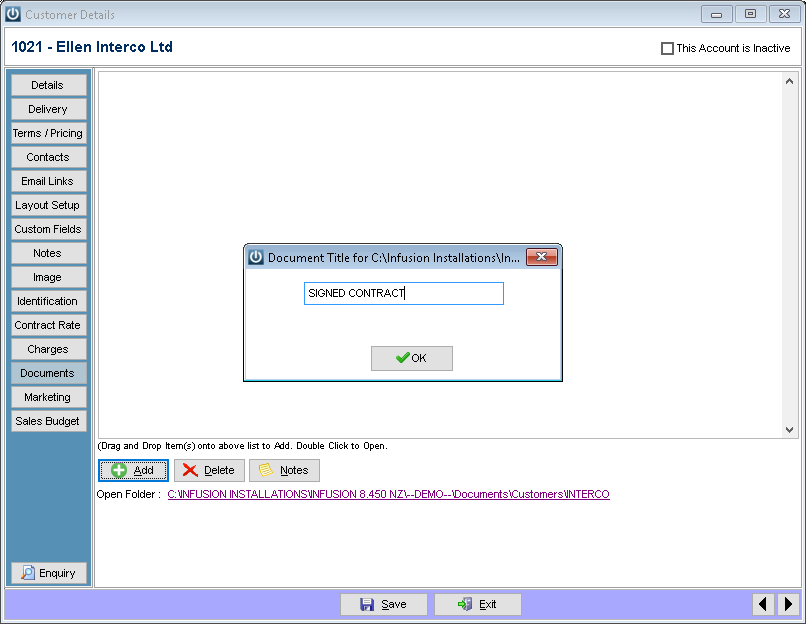
- Select the saved file, click Open and enter the title of the document. This will create a document link that you will be able to access from any computer that logs into this Infusion database.
- Unfortunately, any Document links that have been created without saving the document inside the Infusion folder first will need to be updated using the above method.
NOTE
File paths with apostrophe's will not be located and Microsoft has a limit of 250 Characters for path names.
Comments
0 comments
Please sign in to leave a comment.