With version 8.000 comes the ability to create Graphic Barcodes for Labels and Reports in Infusion.
To include a barcode on a label or a report, you must insert an Image object on the Report or Label for the barcode graphic. Set the property with a call to the Infusion bar code object oFbc.BarcodeImage() method and it is recommended to set "contents Scale, Retain shape" if the image size differs from the frame.
To add the Image object Click the Ole Image button and then draw the object on the Report/Label.
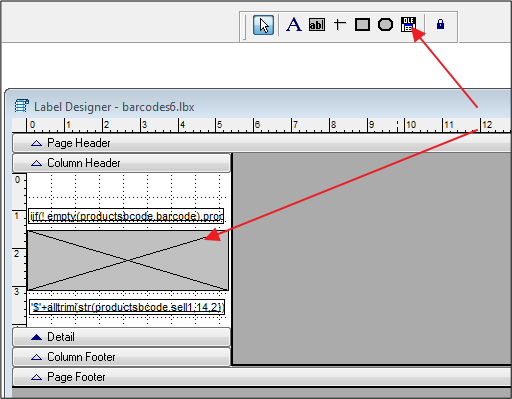
Same for a report.
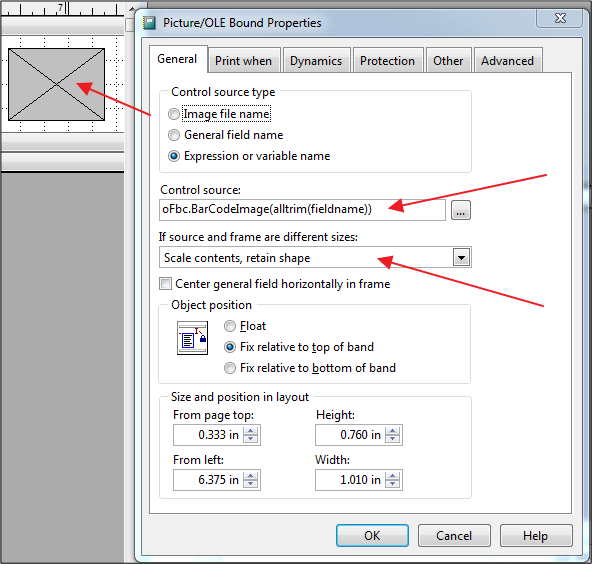
Then set its properties as above.
Note: The fieldname would be the name of the field/column value that you wish to show as a bar code. This could be a Product Barcode, Asset Id, Employee Id etc.
In the BeforeOpenTables Graphicmethod of a Report or Label, you set the Infusion Bar code object properties to the type and formatting style of bar code you want to print.
Example of code to put in the BeforeOpenTables method.
With oFbc
.cImageType = 'PNG'
.nBarcodeType = 121&& Code 39 Extended or Full ASCII
.nFactor = 2
.nAlignText = 1 && centre
.nMargin = 2
.lShowCheckDigi = .F.
.cFontName = 'Arial'
.lShowStartStopChars = .F.
.lDeleteTempFiles = .T.
Endwith
Save the Report/Label and we are ready to print.
Infusion Bar Code object Information:
oFbc is the Infusion Bar Code object used to generate the Barcode graphic.
Its properties (below) can be customised before printing occurs.
--------------------------------------------------------------------------------------------------------------------------------------------------------------------------------------------------------------------------
nImageHeight : Height in pixels of the image.
nImageWidth : Width in pixels of the image.
nAlignBarcode : Align the barcode left= 0, center =1 , right =2
nResolution : Image resolution in DPI. 72 - 1200
nRotation : Rotate the image. 0 = 0°, 1 = 90°, 2 = 180°, 3 = 270°
cImageType : Image type"JPG", "GIF" "PNG", "BMP", "TIF"
cImageFile : Name the image file. If not specified, it generates a random file name in the Windows temporary folder.
cText : Text to encode , normally a field.
nAlignText : Alignment of text. 0 = Left, 1 = centre, 2 = Right
lShowHumanReadableText : .T. whether to display the text readable value.
lShowCheckDigit : .T. whether to display the check digit on the text.
lShowStartStopChars : .T. if it shows the start and end characters in text
cFontName : Font of the text.
lFontBold : .T. if text is Bold.
lFontItalic : .T. if text is Italic.
nFontSize : Font size of text (Recommended = 8 or 9)
nFontColor : Colour of text. Black = RGB (0,0,0)).
nBackColor : background colour of the image White = RGB (255,255,255)).
nBarsColor : Bar Colour Black = RGB (0,0,0).
nBarcodeType : Type bar of code.
110 && Code 128 (Sets A, B and C)
120 && Code 39
121 && Code 39 Extended or Full ASCII
122 && Code 93
123 && Code 93 Extended or Full ASCII
131 && Standard 2 of 5
132 && Interleaved 2 of 5
150 && EAN-8
151 && EAN-13
152 && ITF-14
152 && EAN-14
152 && DUN-14
159 && EAN-128
159 && UCC-128
159 && GS1-128
160 && UPC-E
161 && UPC-A
170 && Codabar
171 && Code 11
172 && MSI/Plessey
173 && Telepen
174 && One Track Pharmacode
175 && Two Track Pharmacode
180 && PostNet (U.S. Postal Service)
181 && Intelligent Mail Barcode (U.S. Postal Service)
182 && RM4SCC (Royal Mail)
183 && KIX Code (Dutch Postal)
cSet128 : Set of Code 128. ("A", "B", "C")
cSupplementalText : Supplementary Text EAN and UPC codes.
lAddCheckDigit : .T. if you calculate the check digit.
nBearerBar : supporting frame type, only in ITF-14. 0 = None, 1 = Rectangle, 2 = Top & Bottom
nFactor : Magnification factor of the bar code. 1-9
nMargin : Margin around the barcode.
nRatio : Relationship between the narrow bars and wide bars in the symbols that allow it.
lDeleteTempFiles : delete or not the temporary folder and image files.
An example of a label report is in the \ Reports folder called Sample_barcode.lbx (lbt).
NOTE: You will need to research bar codes for their formatting for the particular bar code you select. Some are numeric only and will also need to have trimming added on the fields for numeric only bar codes.
Eg : in the ControlSource of the field to show as a barcode. Trimming is added to remove spaces. (This is one line, shown here as 3 lines due to readability)
oFbc.BarCodeImage(iif(! empty(productsbcode.barcode),alltrim(productsbcode.barcode),alltrim(productsbcode.code)))
Comments
0 comments
Please sign in to leave a comment.