Introduction
- Infusion in conjunction with Xtracta have worked to provide users of Infusion with a very tight and easy to use solution allowing Supplier invoices to be scanned from PDF, MS Word, Jpeg or Tiff files. These are automatically converted and imported into Infusion for End User approval or automatically processed.
- This service provides end users with incredible savings in time and cost of data entry.
- It reduces the need for special utilities to import Supplier Invoices as all invoices can be imported via the Digital Invoice Import solution.
- The End User can simply click a button to join the service.
- Xtracta and Infusion are taught where each of the required fields appear on the document scans.
Set up Infusion Defaults & Create Xtracta Email
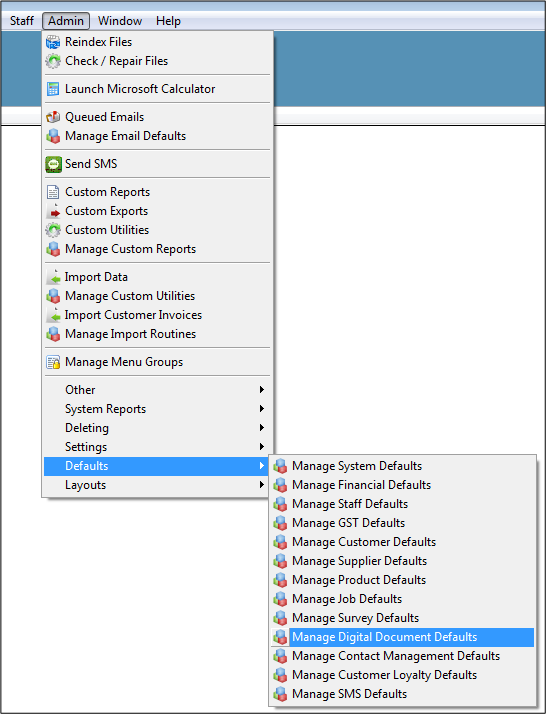
1. Admin/Defaults/Manage Digital Document Defaults
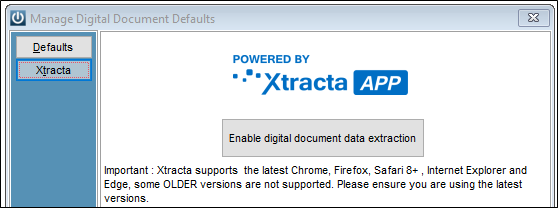
2. Click the button "Enable digital document data extraction"
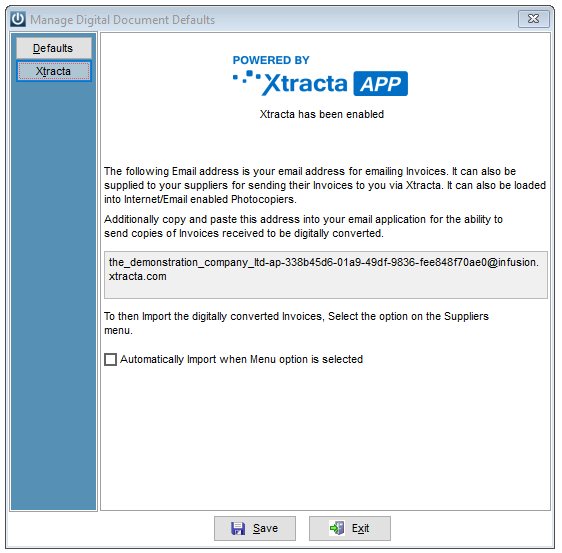
You have now been setup with Xtracta and have an email address that can be given to Suppliers for invoices to be sent to. YourCompanyName-ap@infusion.xtracta.com.
Notes:
- Infusion Demonstration Company has additional characters added.
- -ap is added for accounts payable. In the future other importing options will be added with new extensions. One example would be Customers or e-commerce websites emailing through orders for shipping.
3. Default Settings for Processing.
These can be overridden at the data entry stage.
Automatically Import – this will force the software to check for new invoices as soon as the import screen is opened.
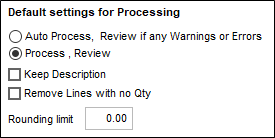
Auto Process – will bypass all preview options and process the invoices immediately. Error checking is performed and if there are errors, the normal data entry screens will open.
Process Review –will send the data through to the normal data entry screens, either New Invoice (No Products) or a Purchase Order.
Keep Description – will retain the supplied description for new products and GL lines.
Remove Lines with no Qty – will remove lines without a Quantity. This includes notes and backorders.
Rounding Limit – will automatically apply a rounding up to a pre-set amount.
Supplier Setup
To assist with the artificial intelligence in Xtracta and linking to Infusion there is a field in the Supplier / Terms tab for a GST number (NZ) or ABN number (AUS). The Account Ref and the GST/ABN should be entered. After making any alterations to Suppliers, you should click the 'Upload Updated Suppliers' button in the Digital Invoice Import screen.
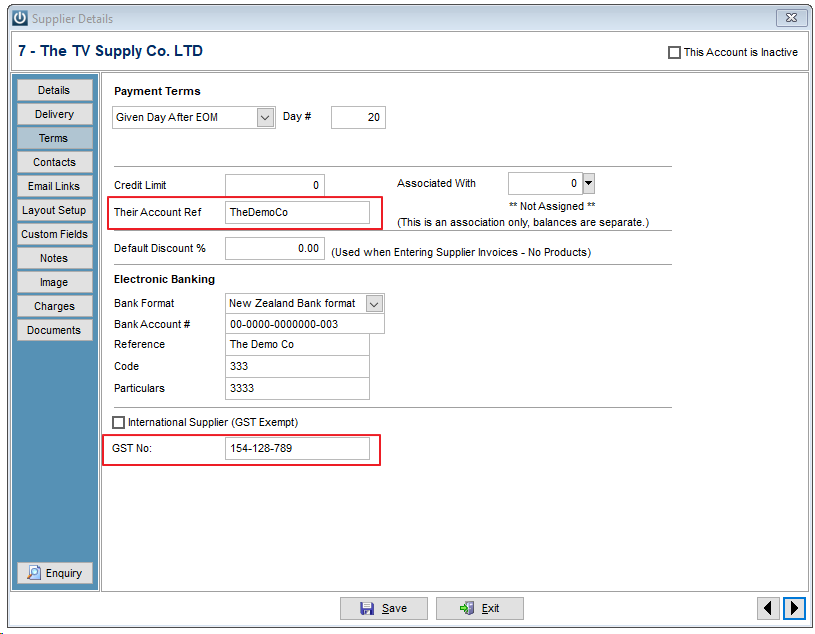
See Using Xtracta for instructions on how this works.
Comments
0 comments
Please sign in to leave a comment.